From screen replacement to motherboard electronics: photographs, repair processes and practical advice to help you understand your computer.
Data recovery
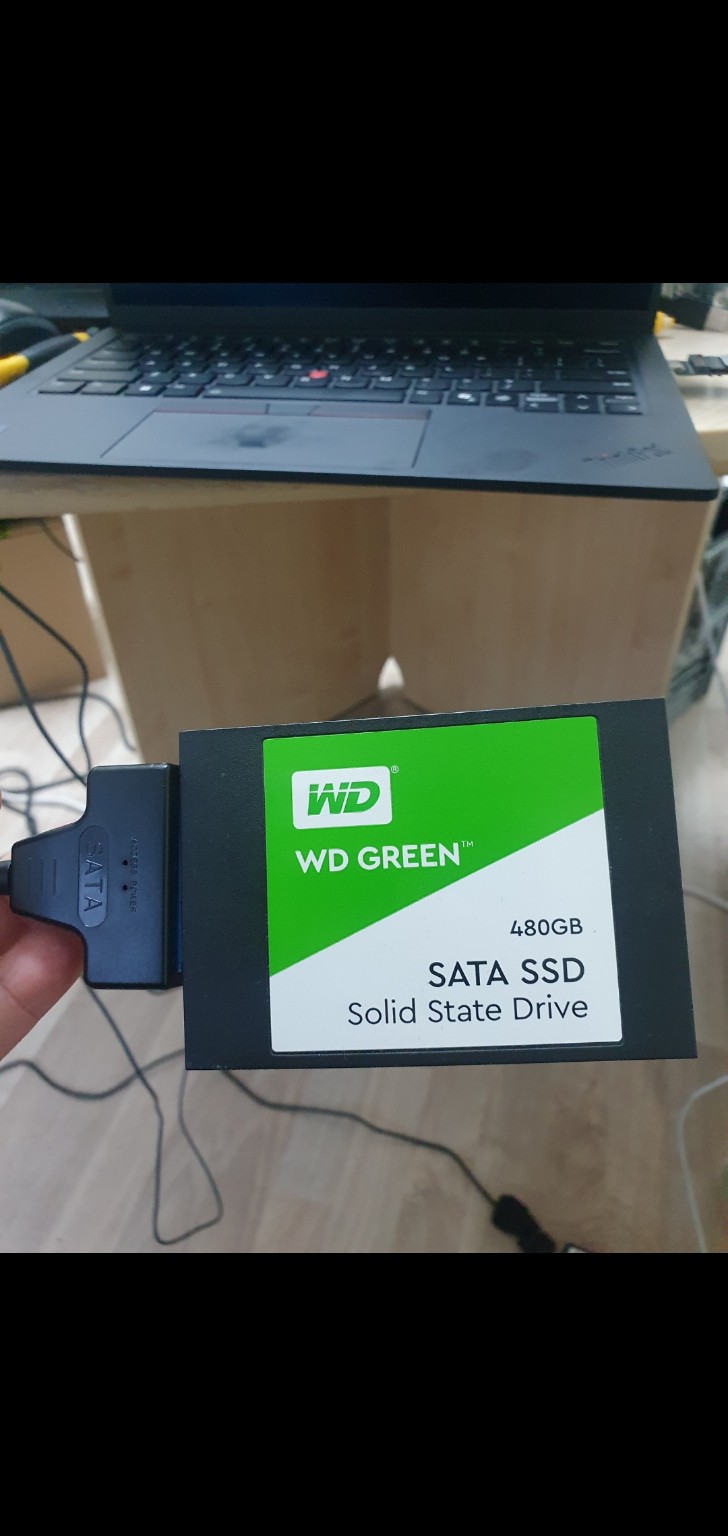
WD Green SSD: successful software-based data recovery
Data was recovered from a WD Green 480 GB SATA SSD using a specialist adapter for connection and software for recovery.
Repair process and recommendations
The story
The priority was retrieving the files stored on the SSD. I connected it through a specialist adapter to work with it separately from the computer. Software-based recovery succeeded. The adapter provided the connection; the recovery itself was performed with software.
How I approach this work
Exact disassembly and testing depend on the model and diagnosed fault.
I establish the loss circumstances, priority files, exact SSD model and interface.
I connect the SATA SSD through a suitable adapter and assess detection and readability.
I choose software recovery steps according to drive condition, analysing the file system and searching for accessible files. Where condition requires it, I work from an image first.
I save recovered files to separate storage, check priority files and discuss the actual result.
Repair outcome
Data successfully retrieved from the WD Green 480 GB SATA SSD using software.
Screens
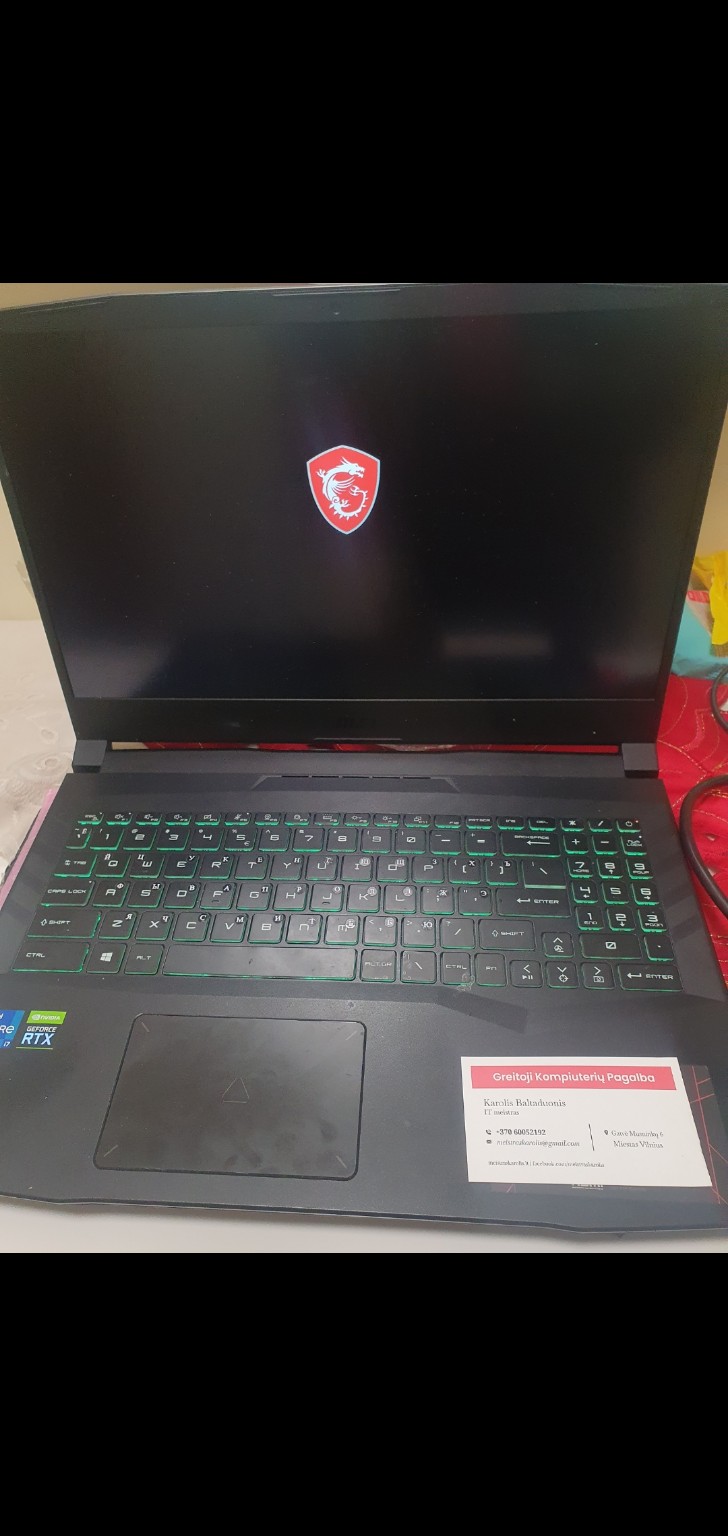
MSI laptop screen replacement
I replaced the screen on this MSI laptop. The photograph shows the assembled device displaying its start-up image.
Repair process and recommendations
The story
Screen replacement involves the display assembly, its mounting points and video connection. The replacement must suit the exact model, and the bezel and cable need careful handling. This job involved replacing the display component while retaining the computer.
How I approach this work
Exact disassembly and testing depend on the model and diagnosed fault.
I identify the model and display size, connector, resolution and, where relevant, refresh rate. I assess whether the fault is in the screen or its connection.
I shut the laptop down, unplug the charger and disconnect the battery as the design requires. I carefully remove the bezel and release the display mountings.
I disconnect the video ribbon, remove the old panel and inspect the cable and connector. I fit a compatible replacement and secure its connection.
Before closing the bezel, I check the image, backlight and brightness adjustment. I finish assembly and check lid movement and closure.
Repair outcome
Screen replaced. The photograph shows the MSI start-up logo on the replacement display.
Electronics and BIOS
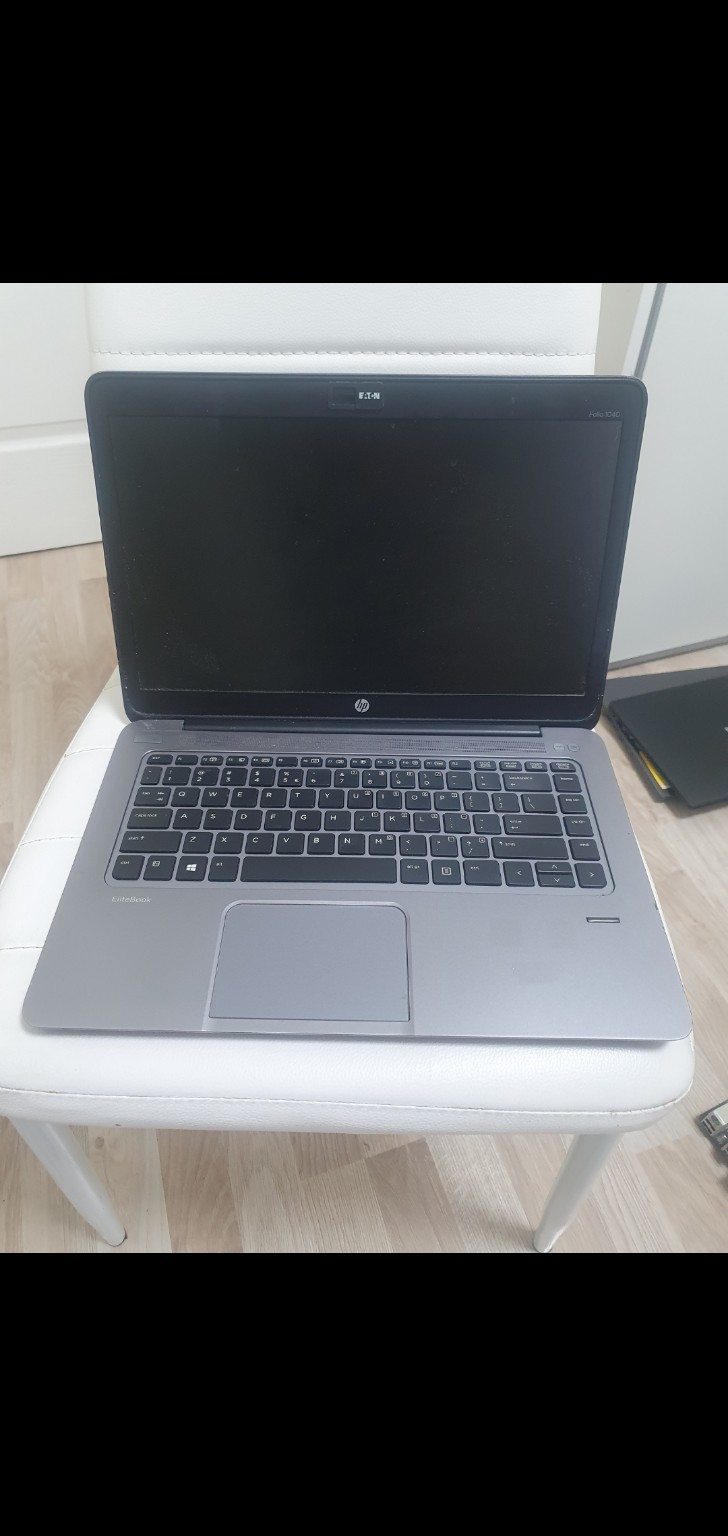
HP BIOS fault resolved using a programmer
I resolved this HP laptop’s BIOS issue using a hardware programmer.
Repair process and recommendations
The story
The problem involved the HP BIOS chip. I used a hardware programmer to work directly with its contents. This resolved the BIOS issue and restored computer operation.
How I approach this work
Exact disassembly and testing depend on the model and diagnosed fault.
I identify the exact HP model, board revision and symptoms, distinguishing BIOS issues from power or RAM faults.
I disconnect power and the battery, access the chip and select a programmer connection suitable for its type and voltage.
Where readable, I back up existing contents. I prepare board-specific BIOS contents, write them using the programmer and verify the write.
I disconnect the programmer, assemble the laptop and check start-up and device detection, adjusting BIOS settings where required.
Repair outcome
BIOS problem resolved using a hardware programmer.
Cooling
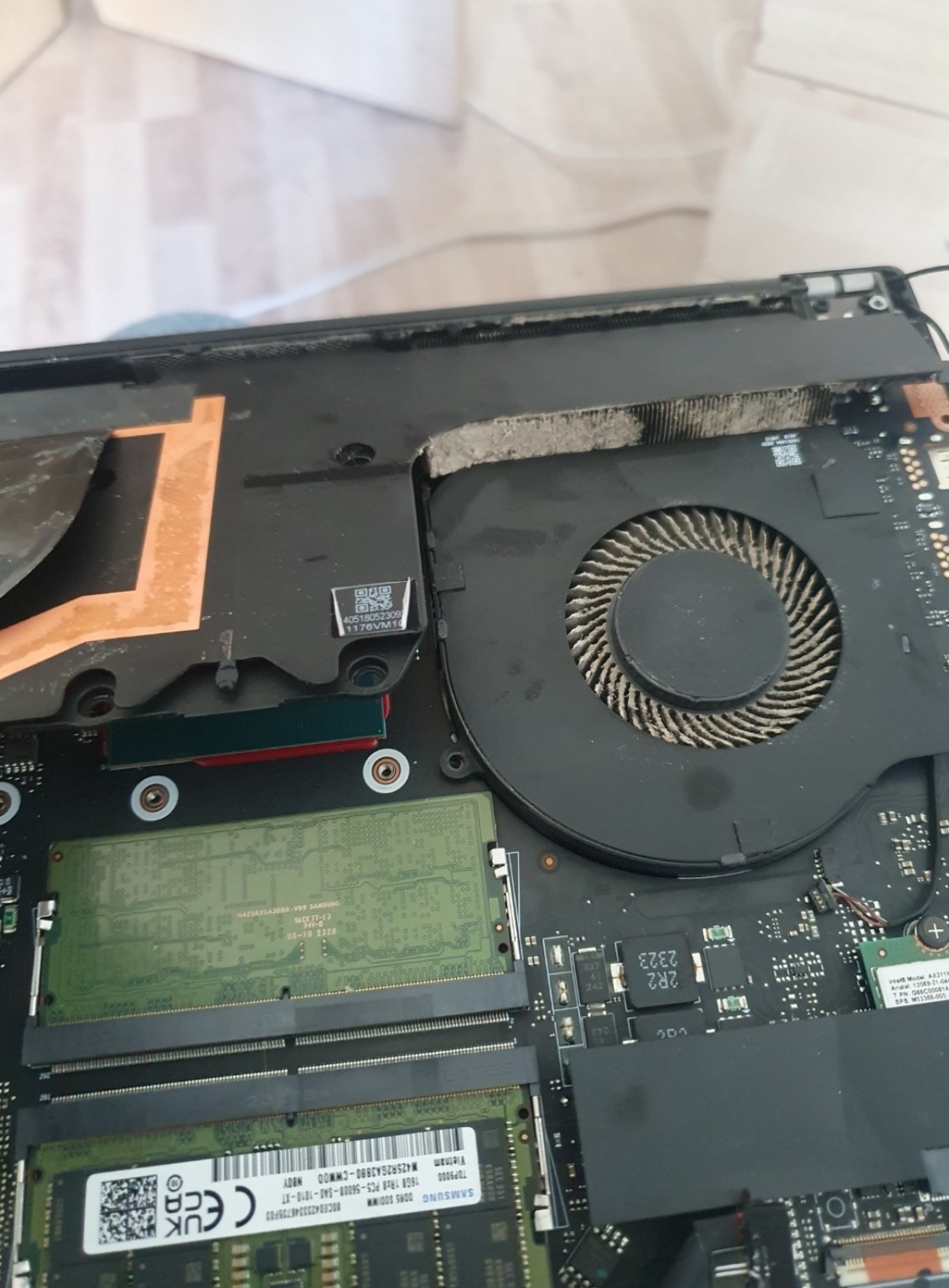
Inside the laptop: dust, old thermal paste and cooling care
A blocked radiator and ageing thermal materials are separate issues to assess during cooling maintenance.
Repair process and recommendations
The story
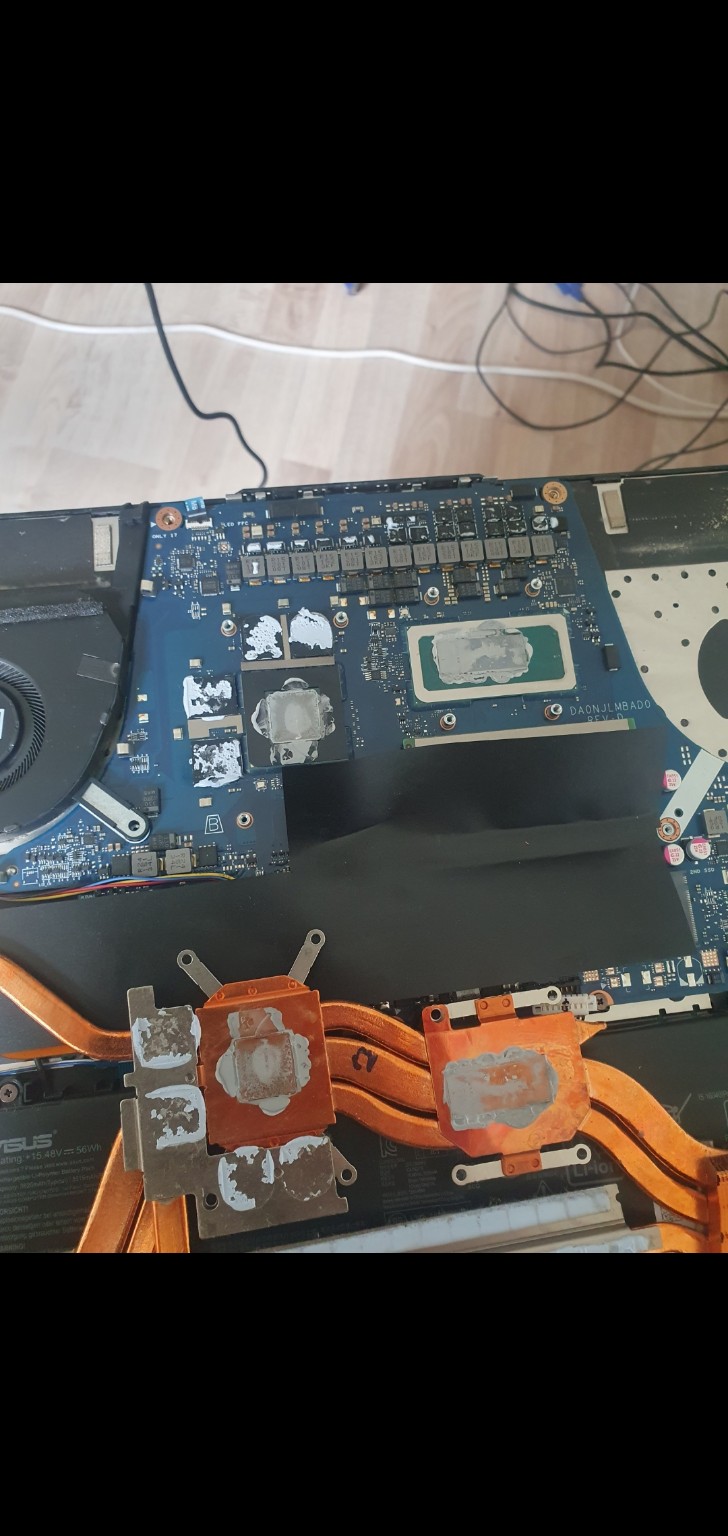
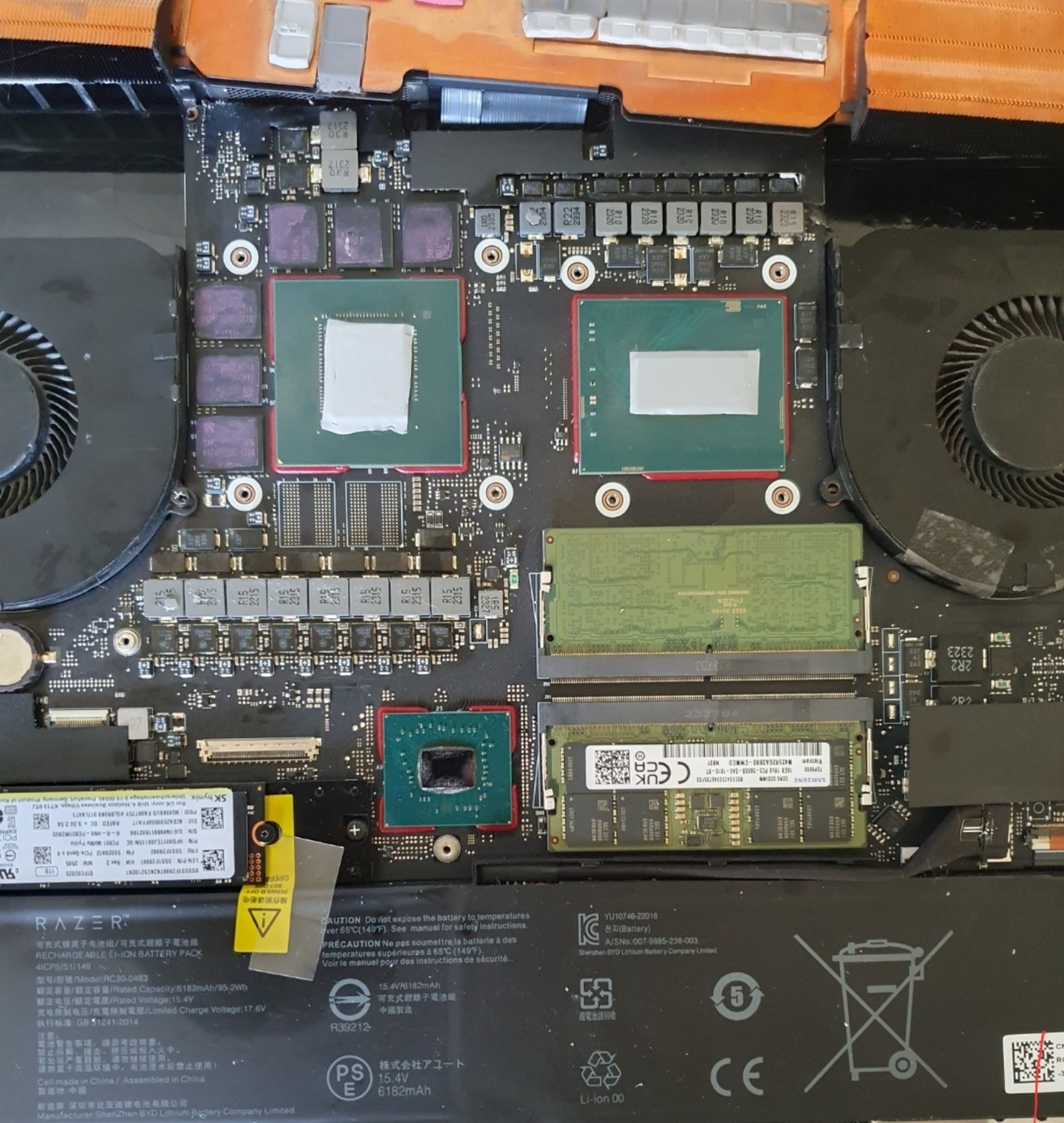
One photograph shows packed dust near the radiator and on the fan blades; another shows removed cooling hardware and old thermal paste. The cleaned Razer interior illustrates renewed thermal materials, including Thermal Grizzly pads. These are several maintenance examples, rather than every stage of one computer’s repair.
How I approach this work
Exact disassembly and testing depend on the model and diagnosed fault.
I assess the model, cooling design and symptoms. Where needed, I record temperatures and fan behaviour under comparable test conditions.
I disconnect power and the battery, open the case and remove fans or cooling hardware as required, noting mountings and thermal-material locations.
I clean fan blades and radiator channels and remove old paste from contact surfaces without scratching them or contaminating nearby electronics.
I renew thermal materials to suit the specific assembly. Paste, thin thermal sheets and thicker pads are not universally interchangeable.
I refit the cooler with even fastening pressure and reconnect the fans. I check operation under load and compare temperatures only when comparable measurements are available.
Repair outcome
Dirt removed and thermal materials renewed. CPU/GPU contact and gaps around other components require separate assessment; one material does not suit every location.
Keyboards and cables
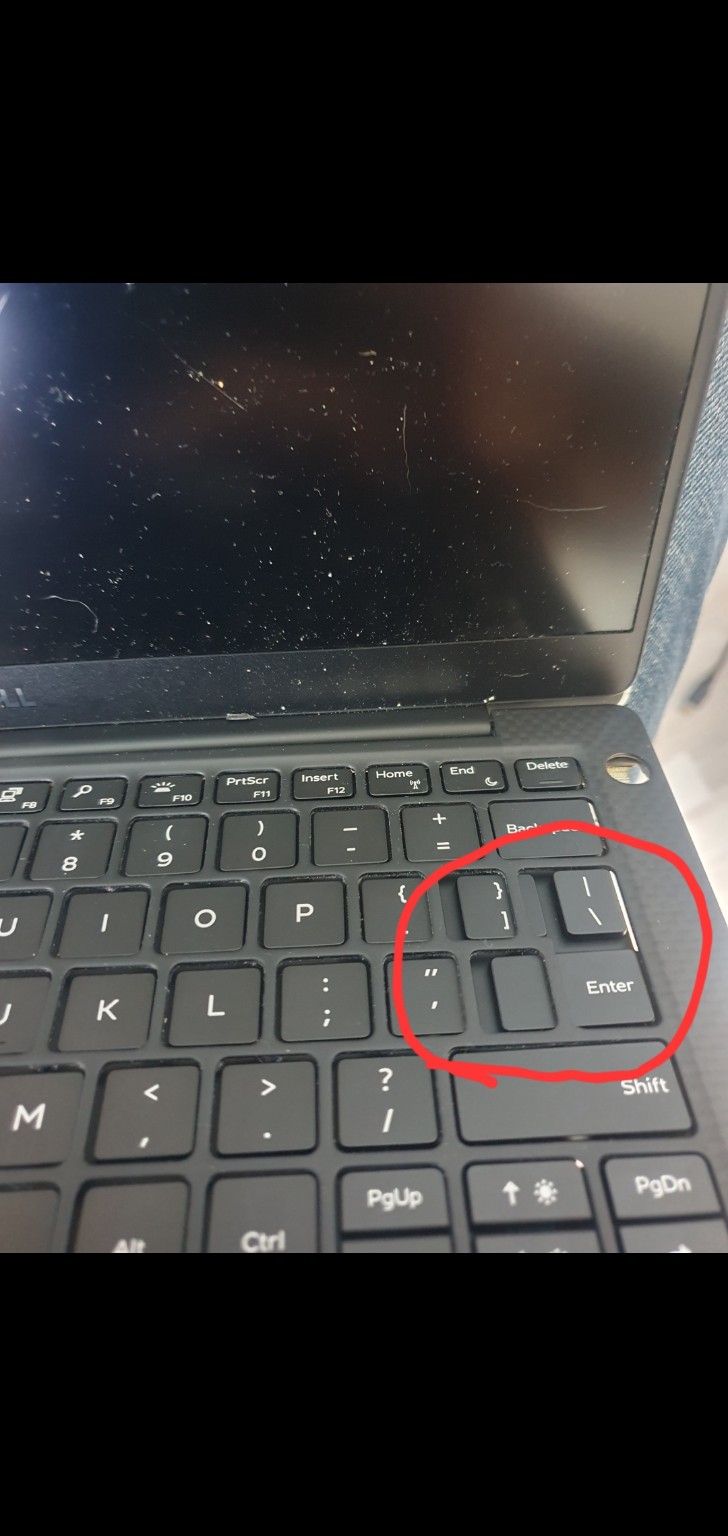
Wrong keyboard version: adapting a specialist ribbon cable
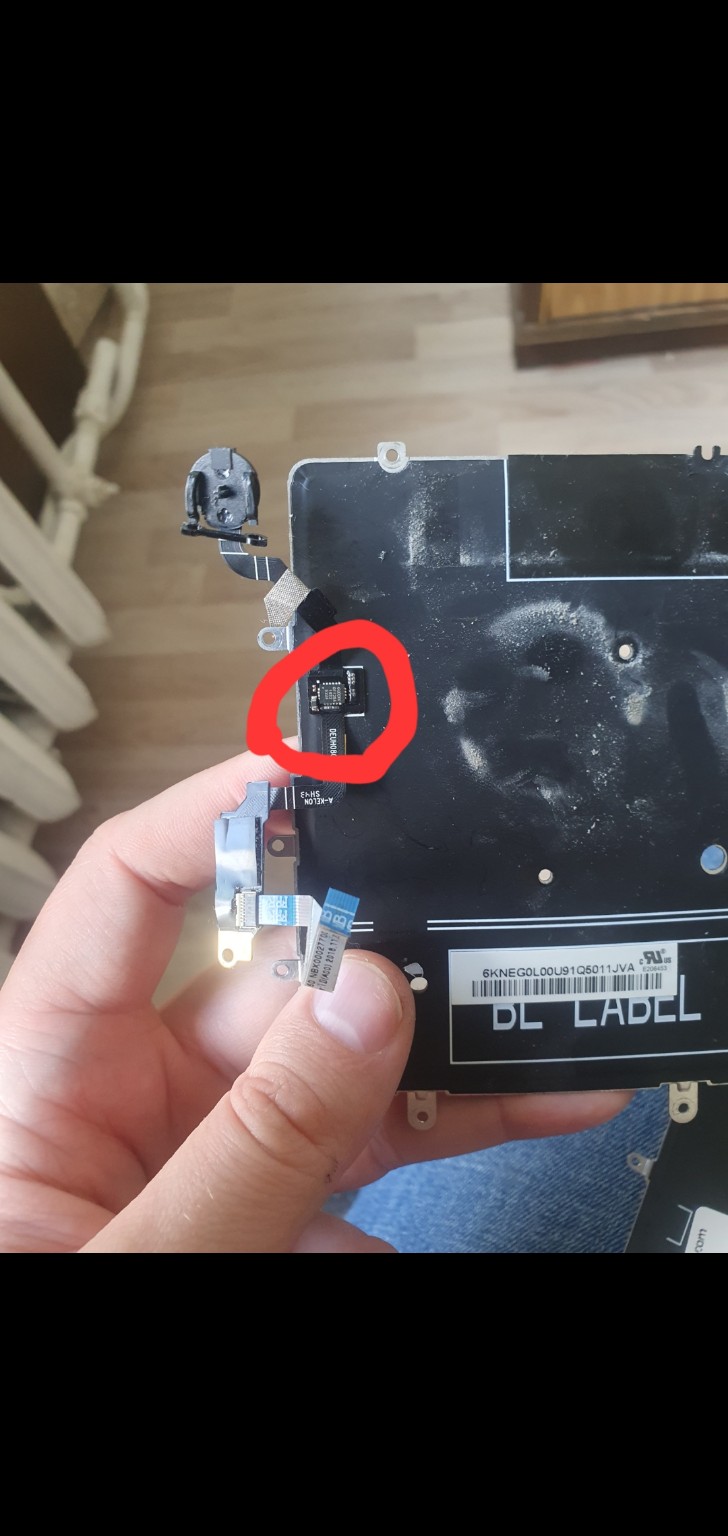
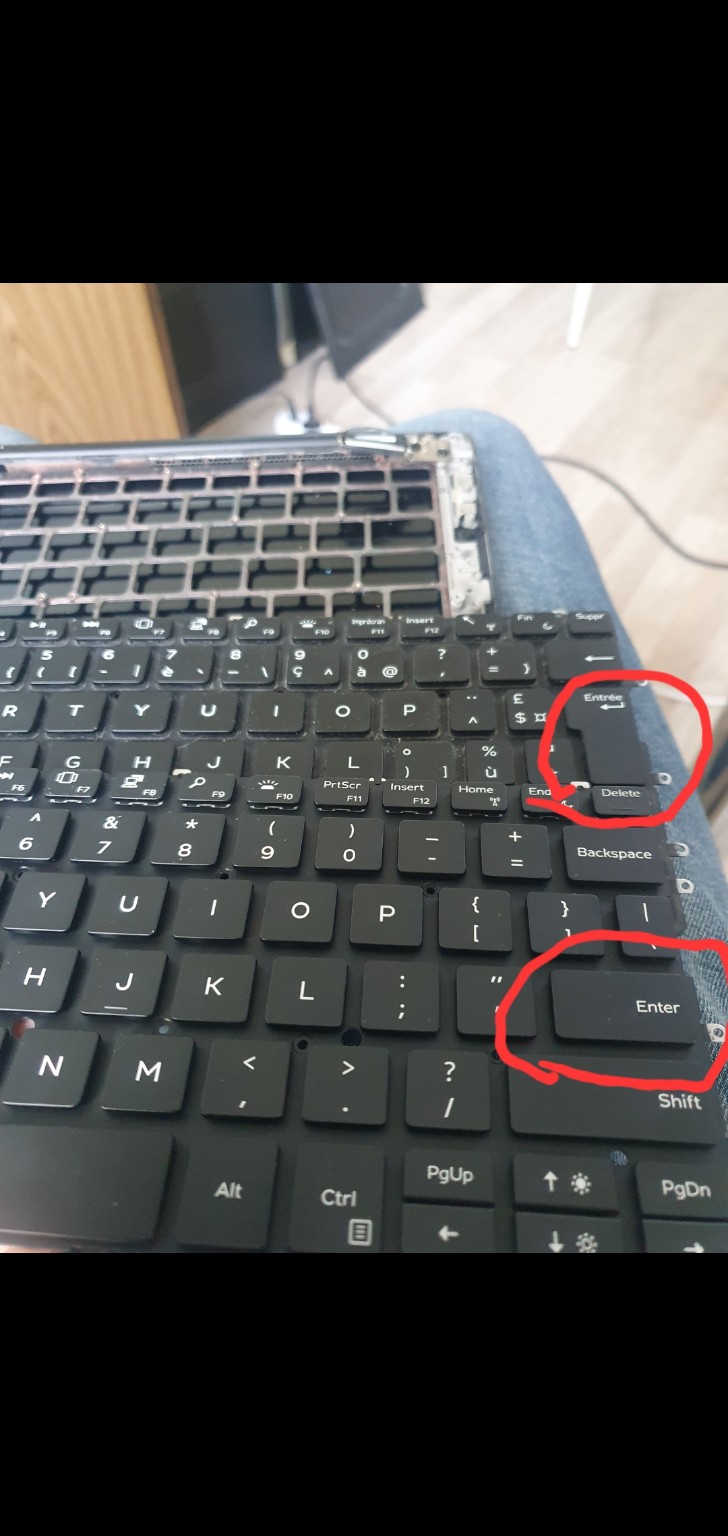
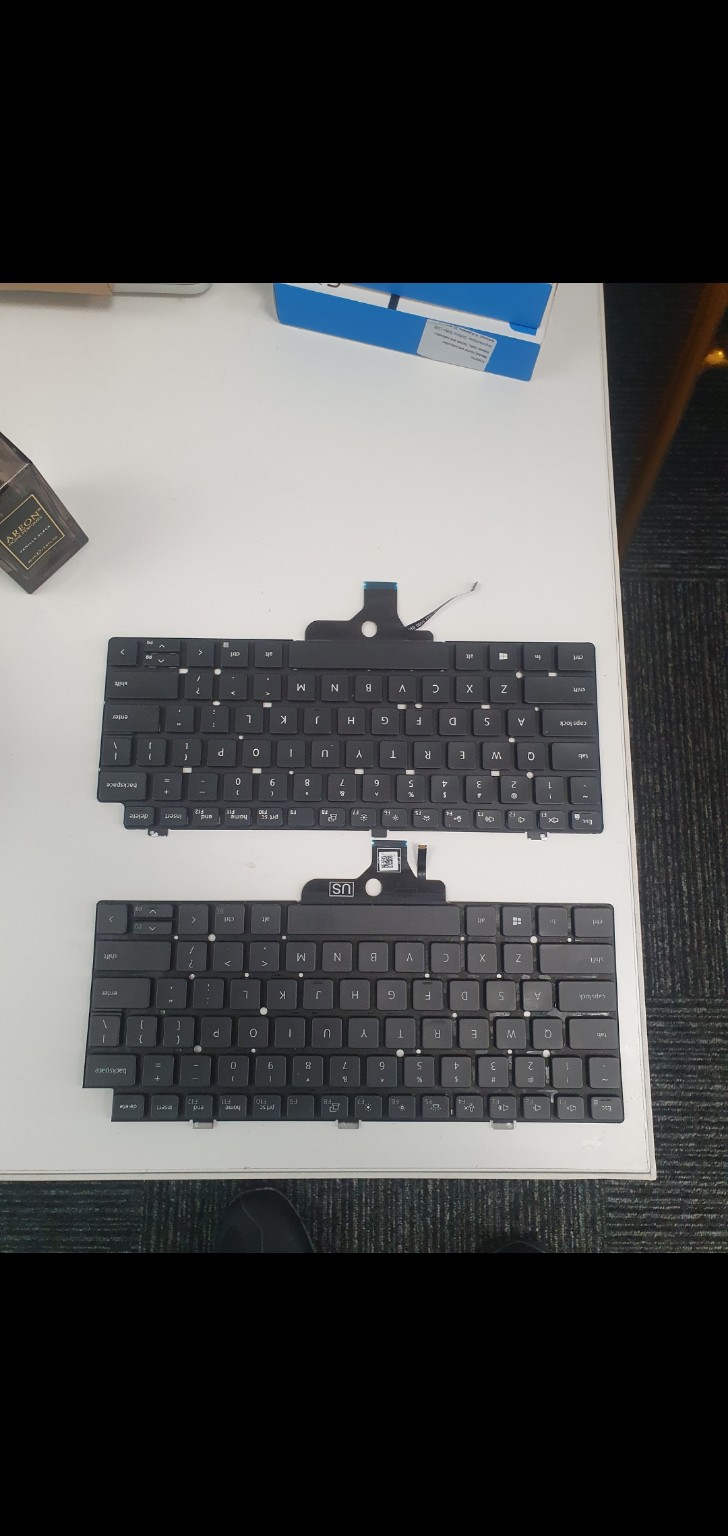
The keyboard ordered by the customer was the wrong version. Adapting it required transferring and soldering a specialist ribbon cable to another keyboard.
Repair process and recommendations
The story
Similar-looking keyboards can differ in connectors, ribbon construction and key layout. This part could not simply replace the old keyboard: additional work on its specialist ribbon was needed. I transferred and soldered the ribbon to another keyboard. The photographs show the ribbon assembly, different Enter-key layouts and the adapted keyboard.
How I approach this work
Exact disassembly and testing depend on the model and diagnosed fault.
I compare mountings, Enter-key shape, ribbons and contacts. A model name alone does not establish compatibility.
I disconnect power and the battery, access the keyboard and assess which ribbon section can be transferred and where soldering is required.
I prepare the contacts, transfer and solder the specialist ribbon, then check joints, continuity and unwanted shorts.
I connect the adapted keyboard and check key input before completing assembly. The scope depends on the keyboard design.
Repair outcome
Replacement required additional ribbon transfer and soldering. Correct part selection before ordering would have reduced the need for this extra work.
Components and upgrades
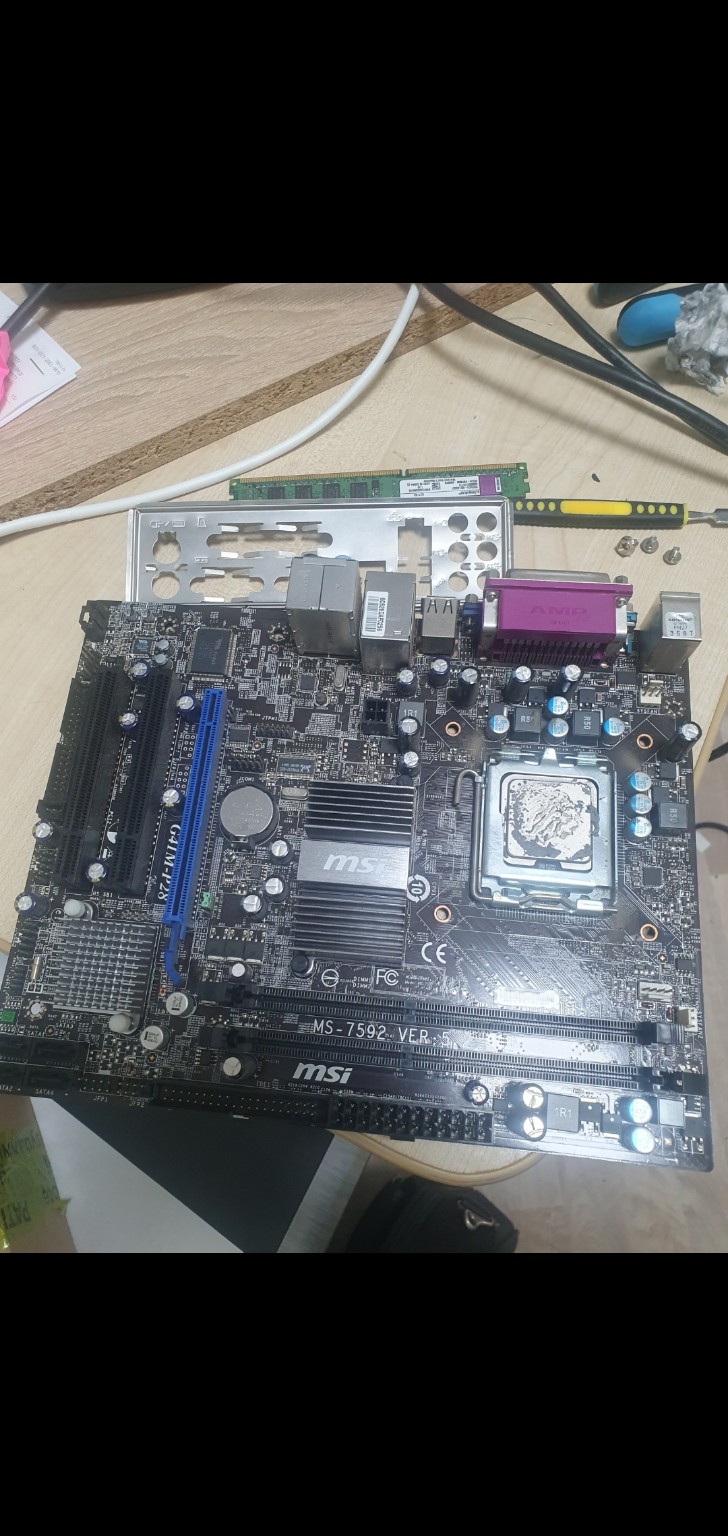
Failed processor: diagnosis and replacement
After disassembling the desktop and removing its motherboard, I identified a faulty processor. Replacement and reassembly restored correct operation.
Repair process and recommendations
The story
A failed computer does not always require a replacement motherboard. I removed this board for diagnosis and identified the processor as the cause. I replaced the failed CPU and reassembled the system. Replacing the specific faulty component restored operation.
How I approach this work
Exact disassembly and testing depend on the model and diagnosed fault.
I unplug the computer, open the case, disconnect connections and remove the motherboard for diagnosis.
I distinguish a CPU fault from memory, power or other problems and select a CPU supported by the board and BIOS.
I remove the cooler, release the socket and replace the CPU while protecting its contacts. I clean and renew thermal paste before refitting cooling.
I refit the board, reconnect cables and check start-up, CPU detection and operation under load.
Repair outcome
Faulty processor replaced; the reassembled computer operated correctly.
Data recovery
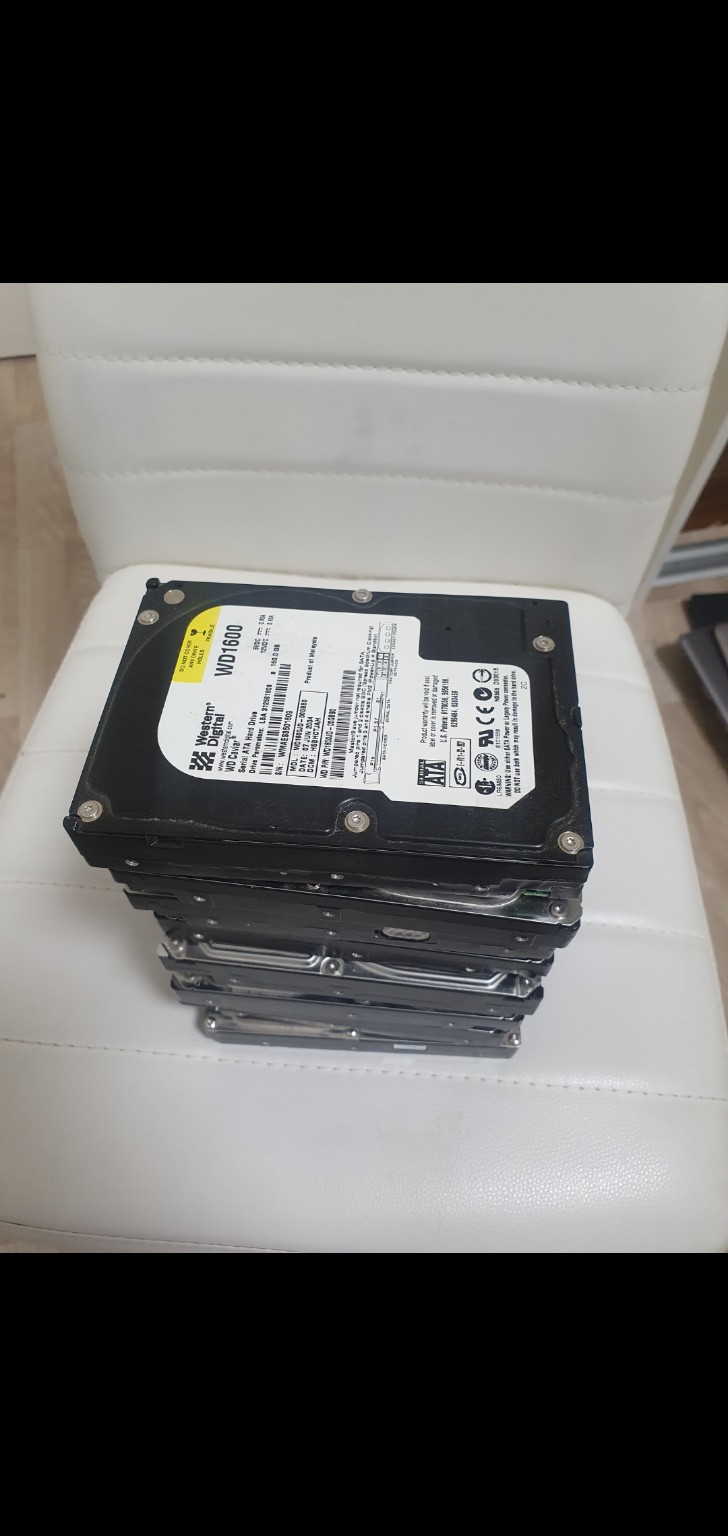
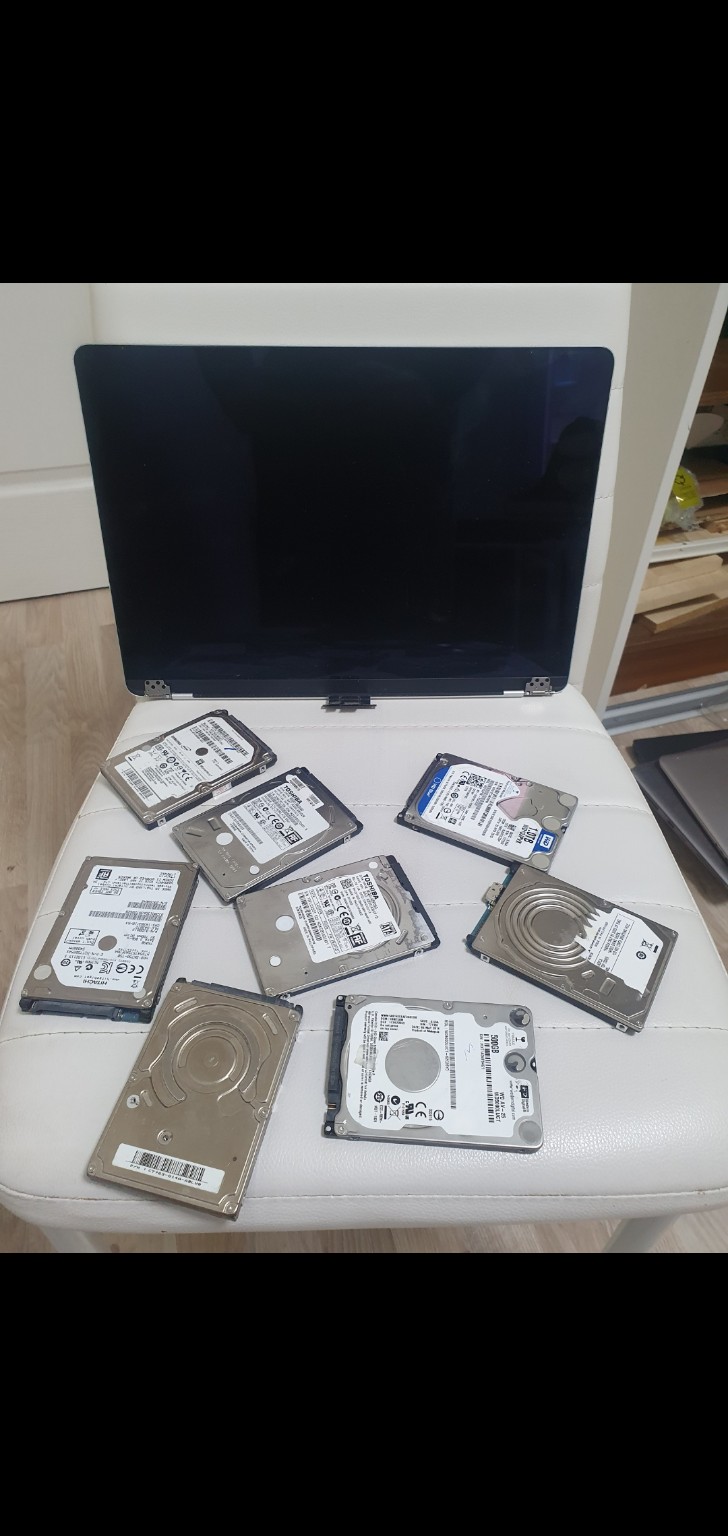
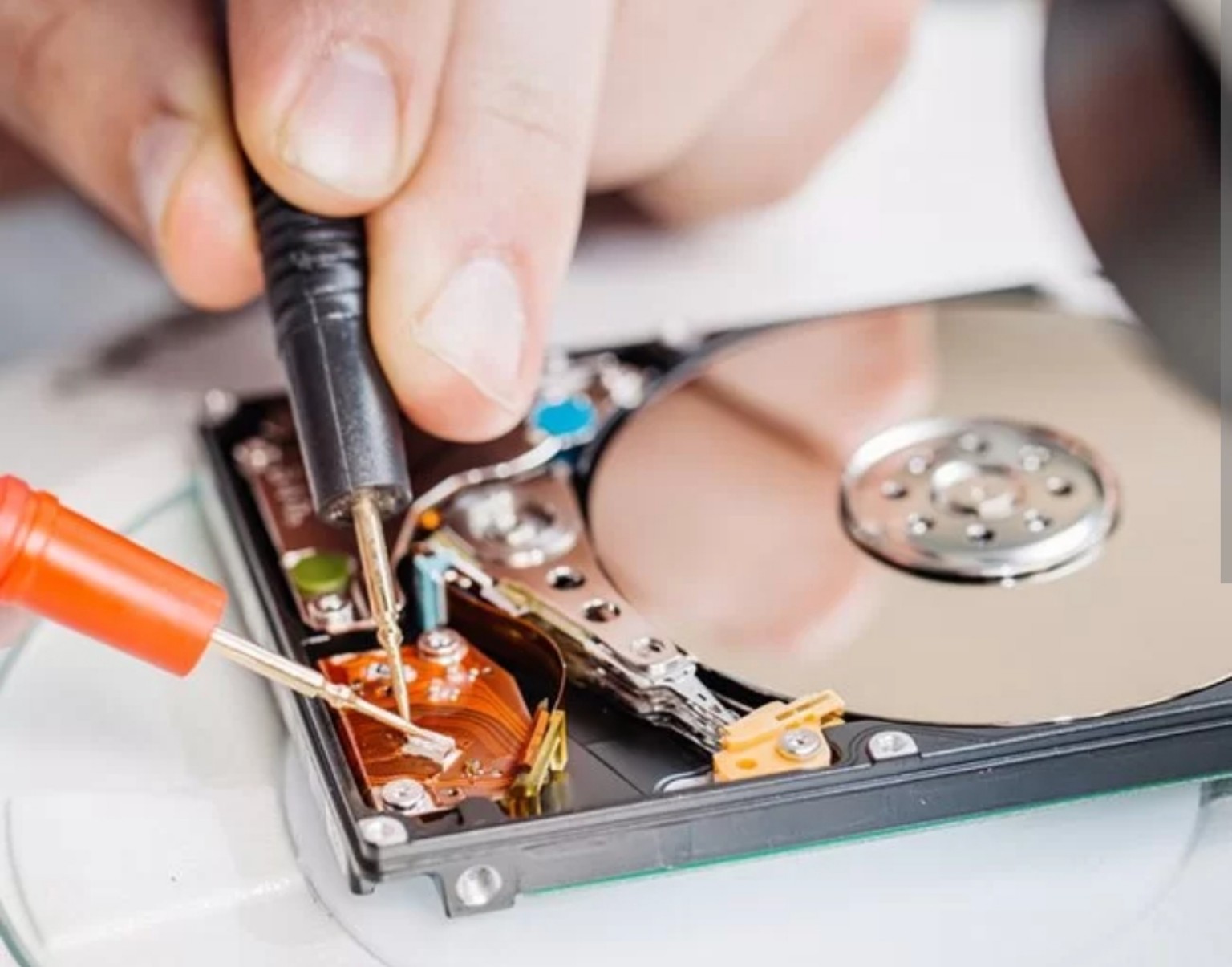
SATA HDD recovery: heads, mechanical parts and software
This group of SATA hard drives required head replacement, mechanical work and software recovery. The success rate for these cases was 85%.
Repair process and recommendations
The story
Drives with the same interface can have very different faults. Some of these SATA HDDs required read/write head replacement before data could be read; others needed mechanical parts replaced. One drive was recovered with software. I assessed each drive individually because mechanical faults and file-system problems require different approaches.
How I approach this work
Exact disassembly and testing depend on the model and diagnosed fault.
I record each model, symptoms and priority data, distinguishing mechanical cases from those suitable for software recovery.
I select compatible donor parts for mechanical work. The diagnosed fault determines head or other mechanism-part replacement, with protection against platter contamination.
Once readable, I copy data to separate storage or an image, prioritising relevant areas. The software case receives appropriate file-recovery analysis.
I assess the files and outcome. Mechanical intervention serves data retrieval; it does not automatically make the drive reliable for continued use.
Repair outcome
The success rate for this pictured group of SATA HDD cases was 85%. This describes these jobs and is not a guarantee for every drive.
Screens
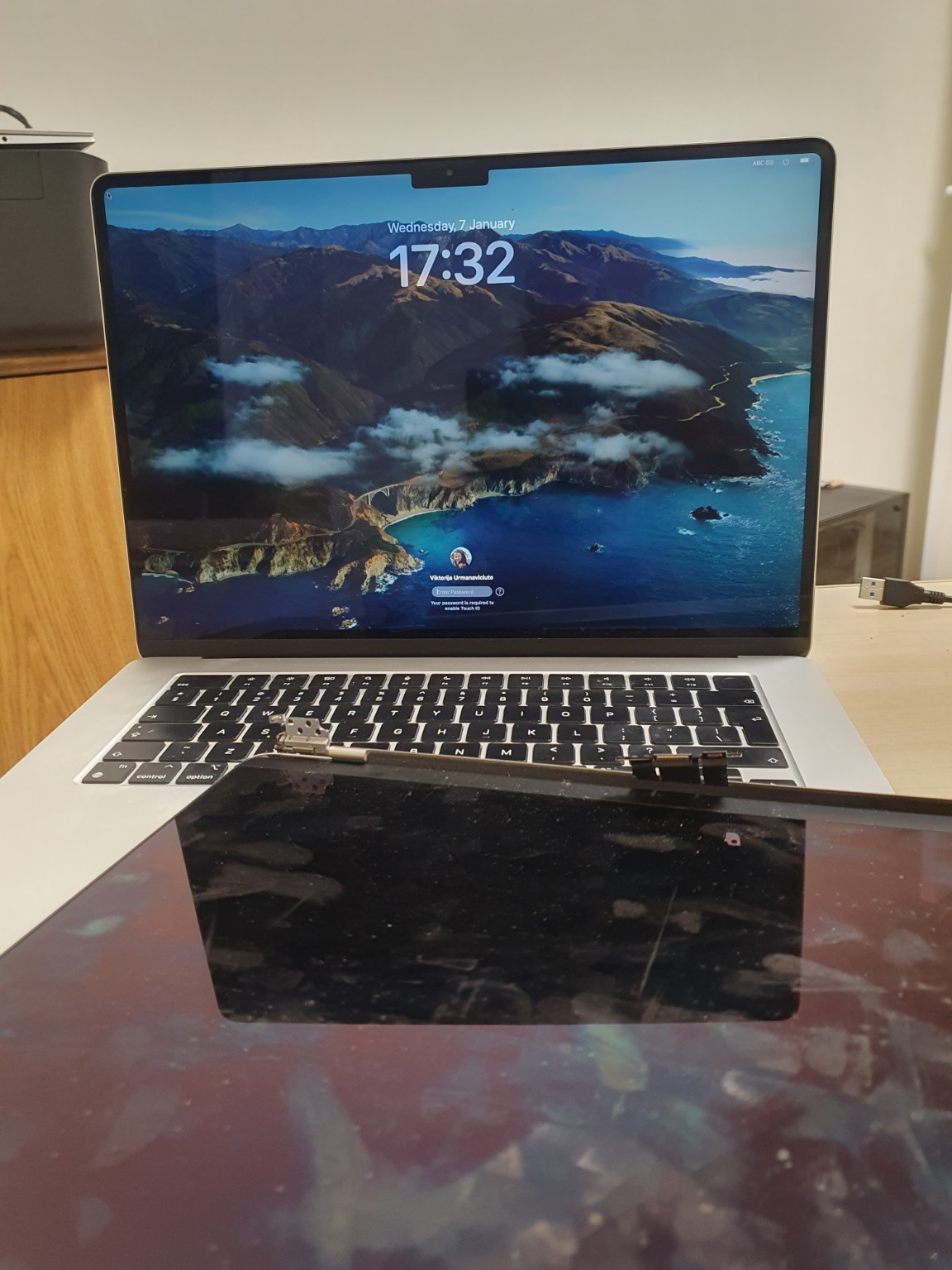
MacBook screen replacement: damage, disassembly and assembly
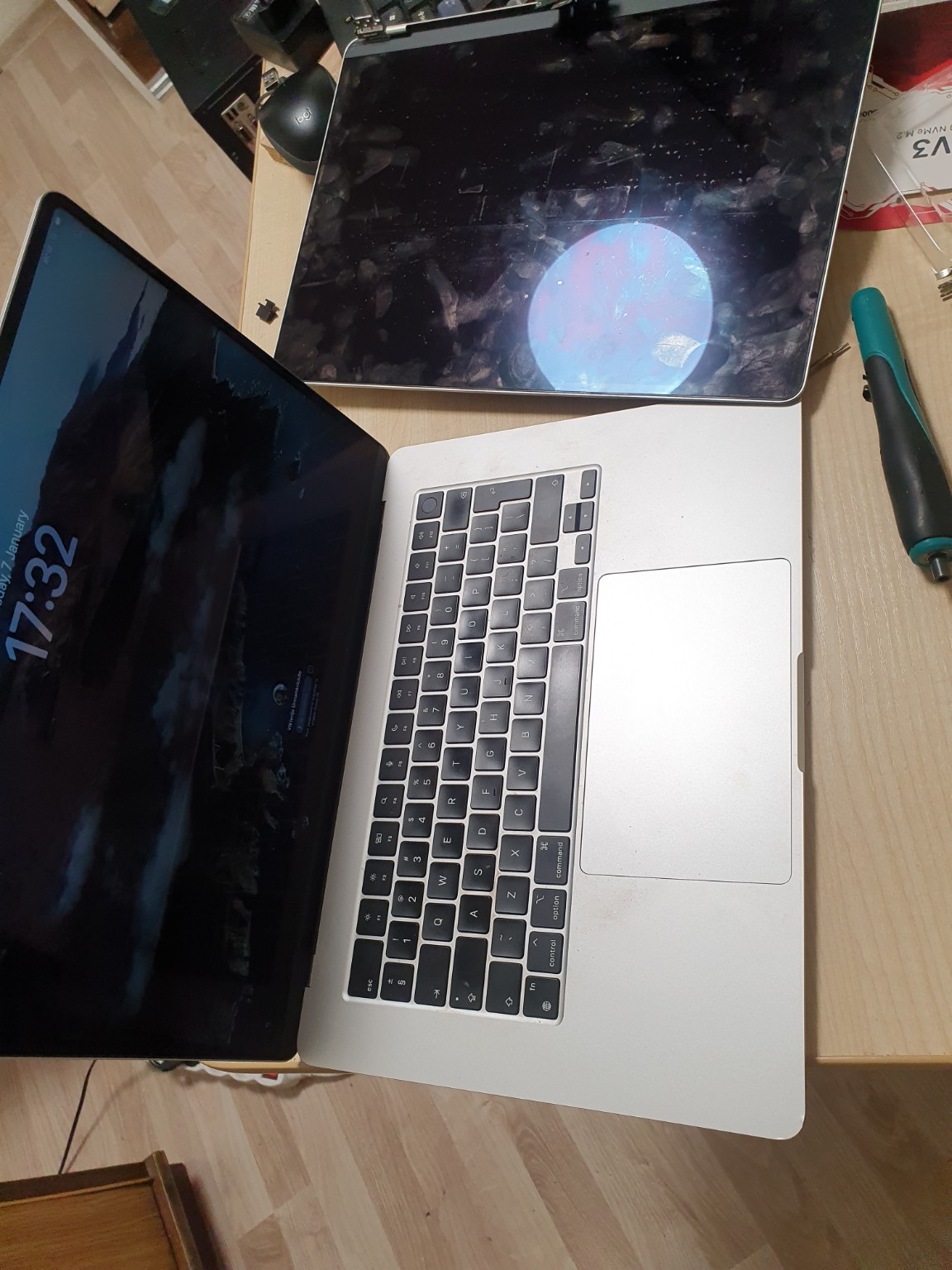
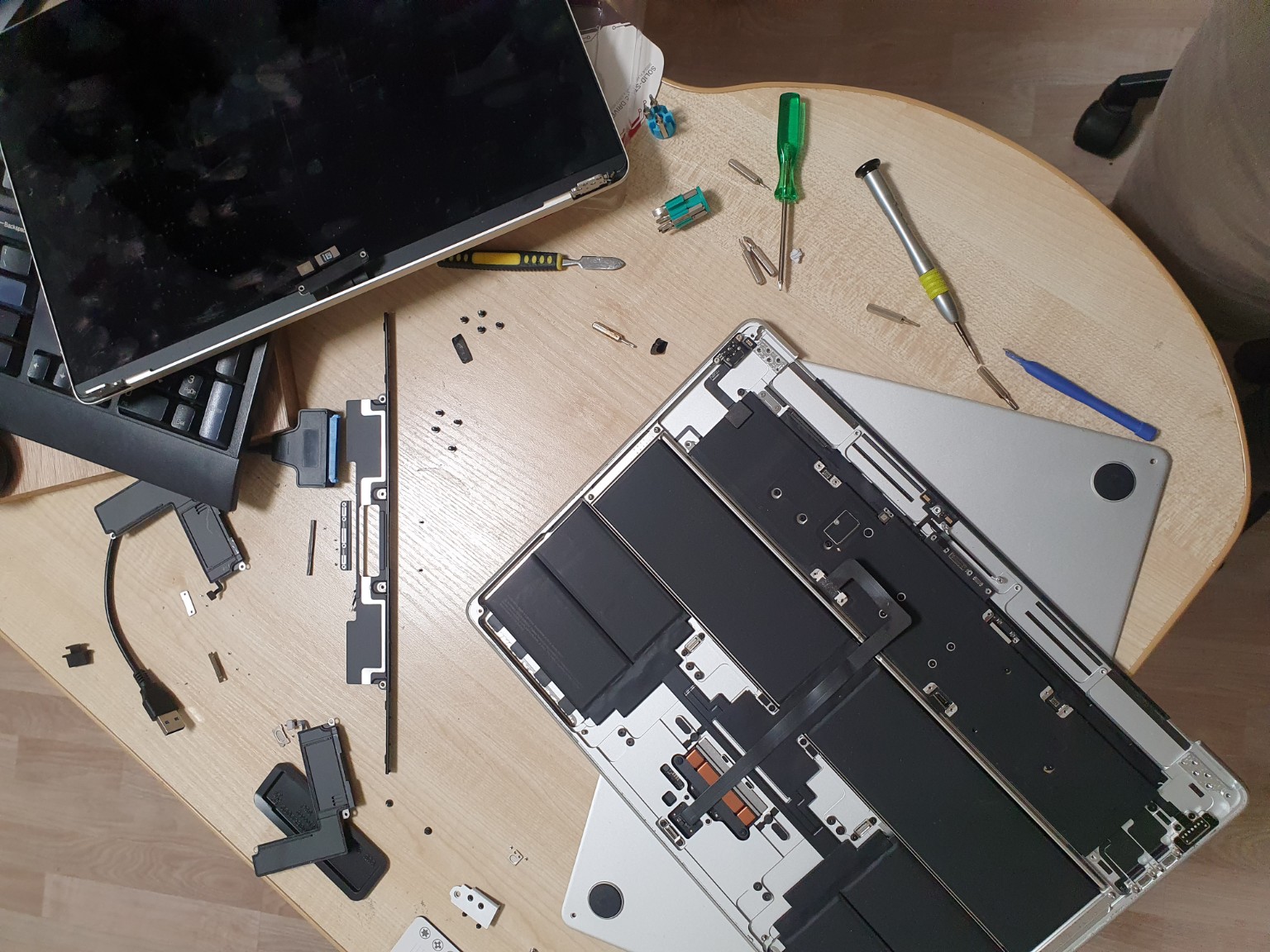
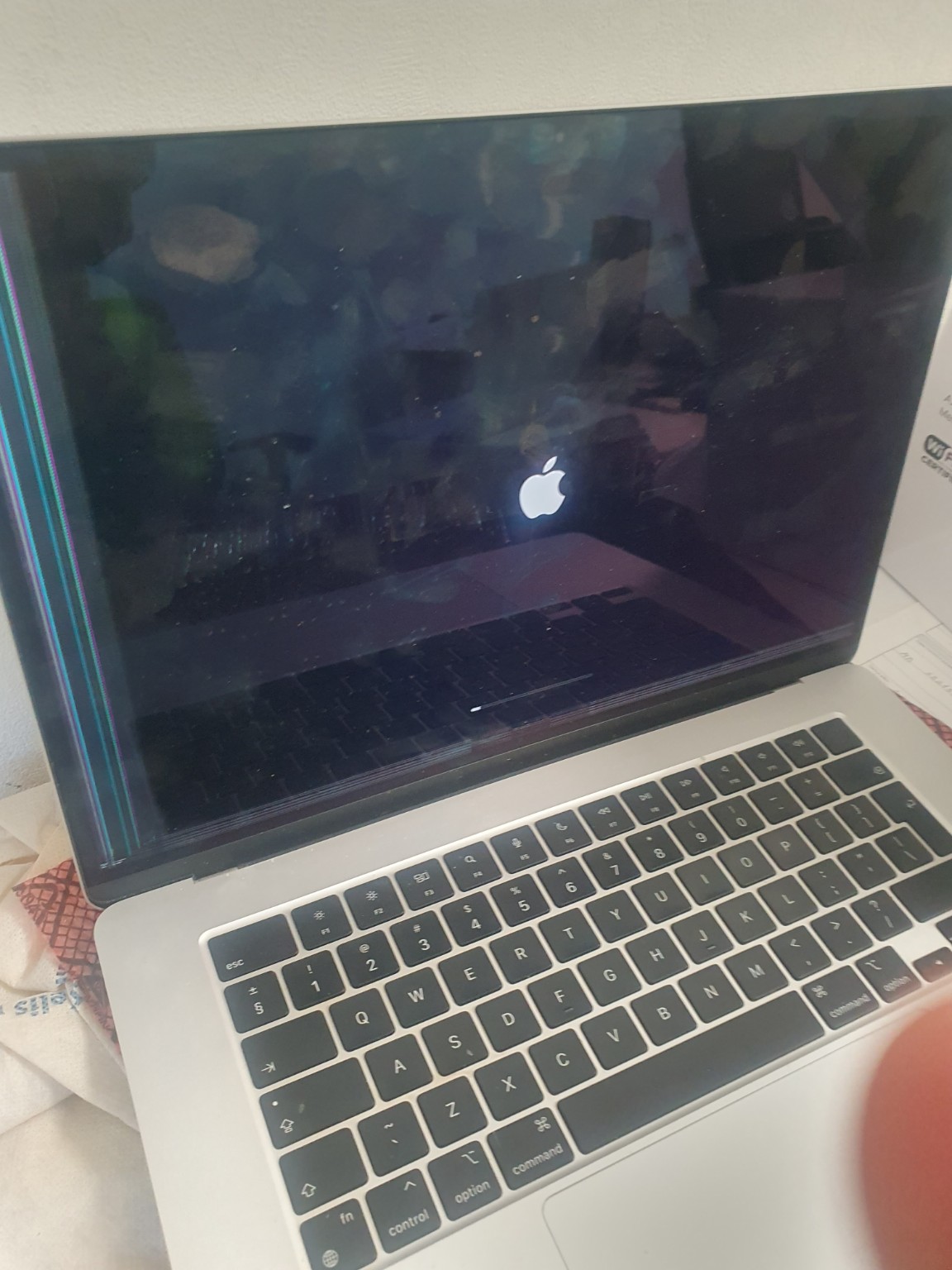
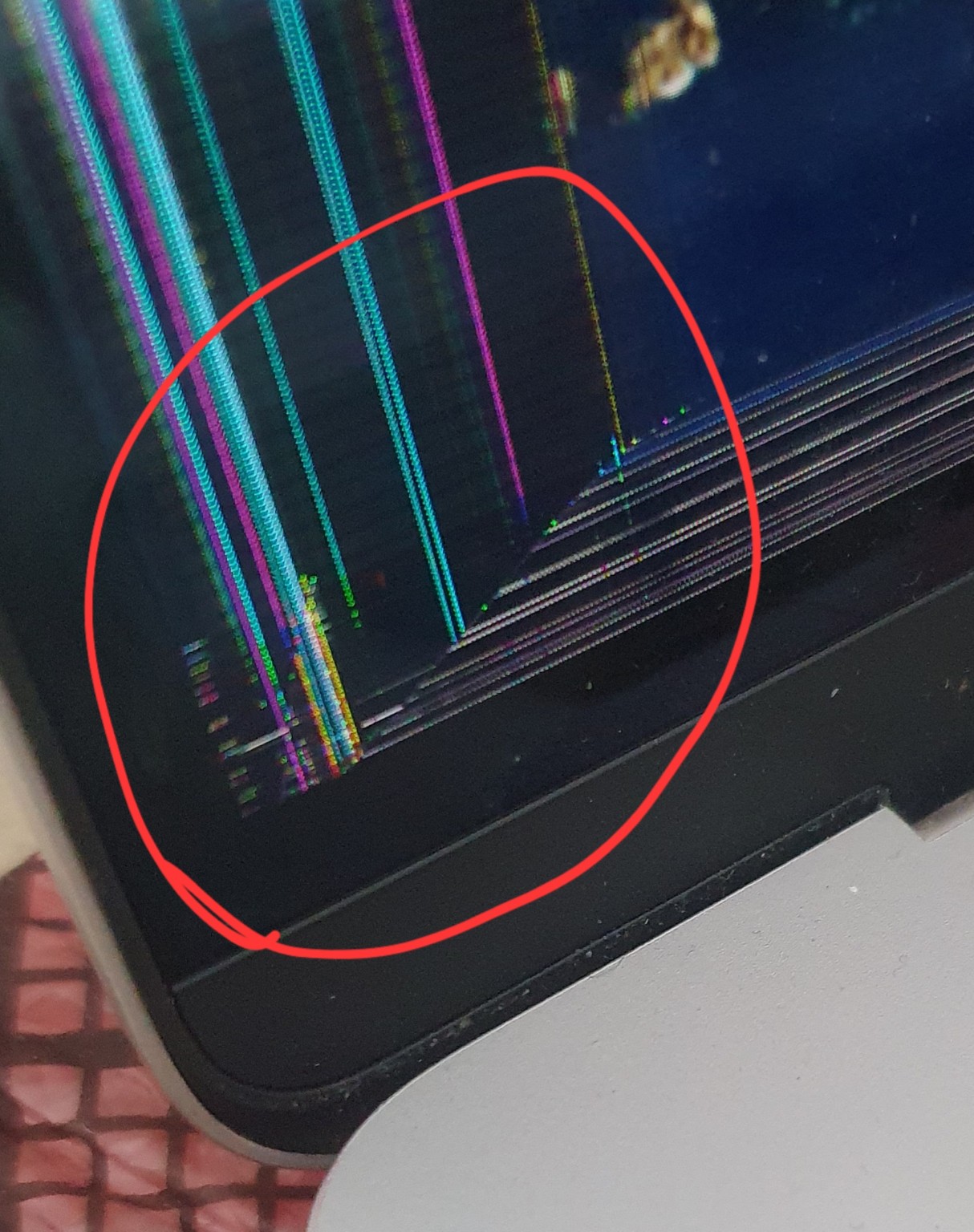
This photo series shows an Apple display fault, stages of disassembly and the computer after screen replacement.
Repair process and recommendations
The story
Coloured lines and image defects document the initial condition. Other photographs show separated display assemblies and work inside the computer. Replacement requires a part compatible with the exact generation and careful handling of internal connections. The series illustrates the scope of the work as well as the finished device.
How I approach this work
Exact disassembly and testing depend on the model and diagnosed fault.
I identify the correct display assembly for the exact MacBook model and assess image damage, hinges and connectors.
I disconnect power, remove the bottom cover and disconnect the battery following the model’s procedure. I release relevant brackets and cable covers.
I disconnect the display-related connections and, where required, antenna cables. I release the hinge fastenings and remove the display assembly being replaced.
I install the compatible replacement, align the hinges, route the cables and reconnect them without trapping cables when the lid closes.
I reconnect the battery and check the image, brightness, lid-open/close response and display-related functions before completing assembly.
Repair outcome
Apple computer screen replaced. The gallery documents the fault, disassembly stages and assembled device.
Electronics and BIOS
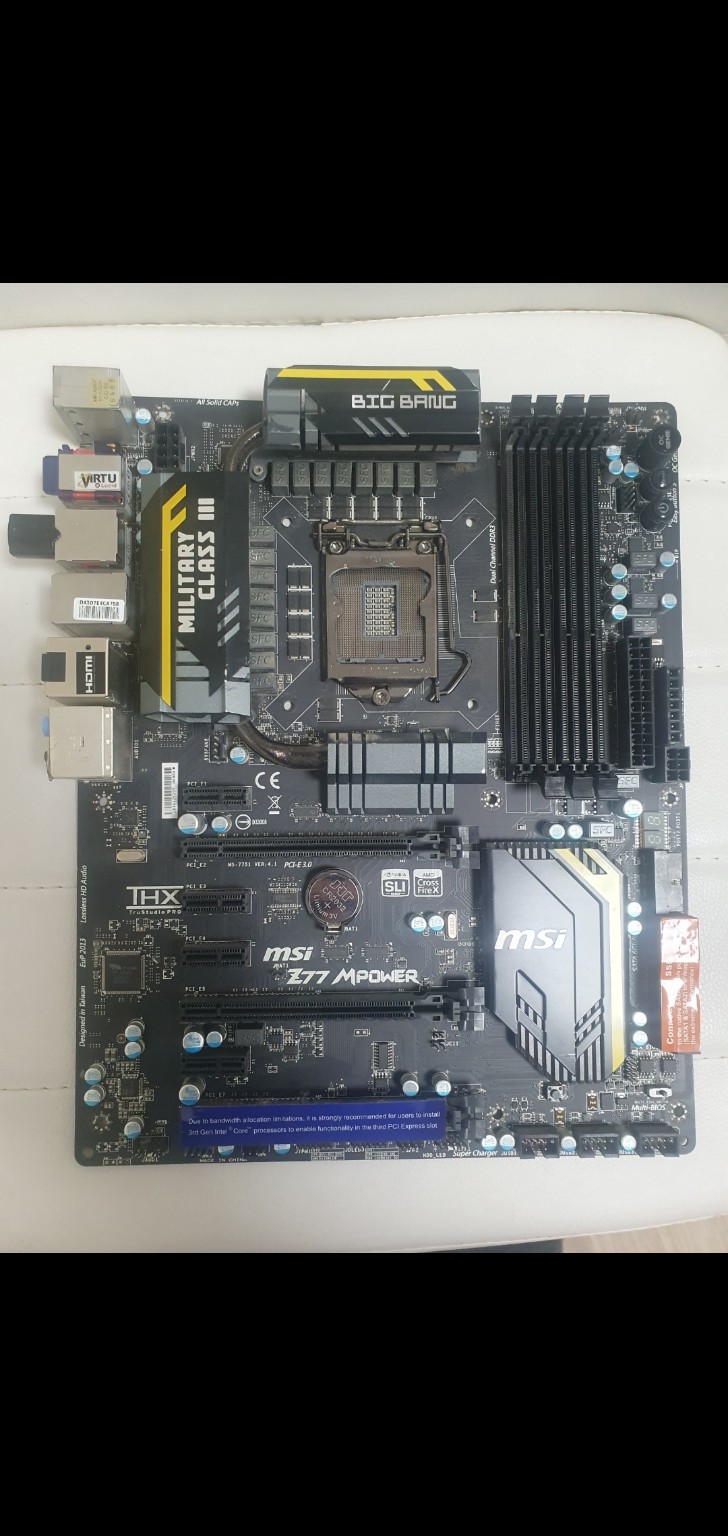
MSI Z77 MPower: two faulty RAM slots
Two shorting memory slots were identified on this motherboard. Moving the RAM modules to other working slots restored operation.
Repair process and recommendations
The story
The fault involved the slots rather than a simple need to replace memory. I identified two shorting slots and used the working ones. This restored the computer without replacing the entire motherboard. The damaged slots themselves were not repaired.
How I approach this work
Exact disassembly and testing depend on the model and diagnosed fault.
I disconnect power and inspect memory modules and slots to distinguish module faults from board faults.
I assess memory operation and slot condition, identify the affected slots and check whether the remaining ones meet the RAM requirement.
I fit the modules in working slots, following the board’s arrangement where possible, and leave damaged slots unused.
I check boot, detected memory and operation, and explain the remaining upgrade limits.
Repair outcome
RAM moved to working slots; computer operation restored. The two damaged slots remain unused.
Cooling
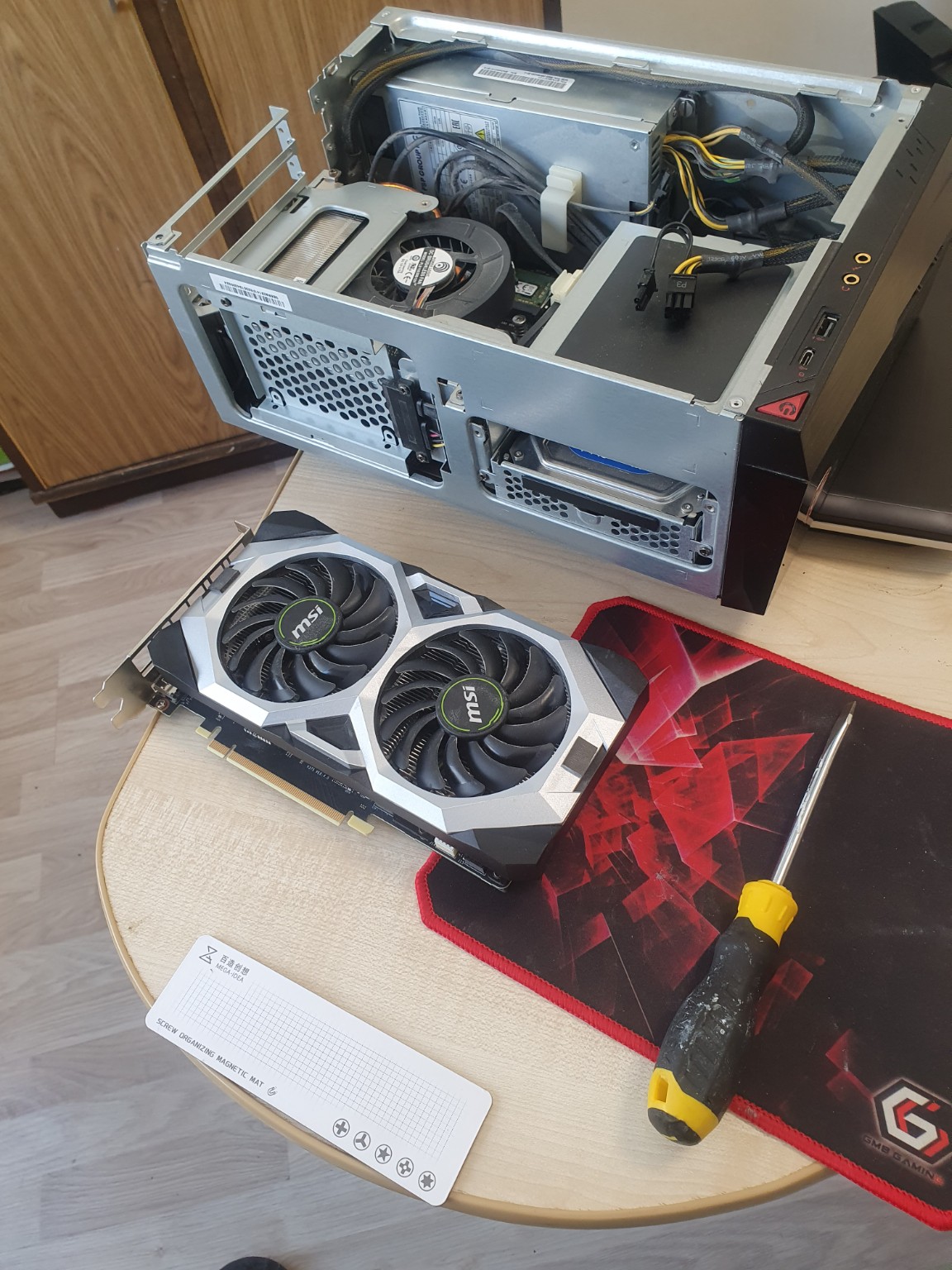
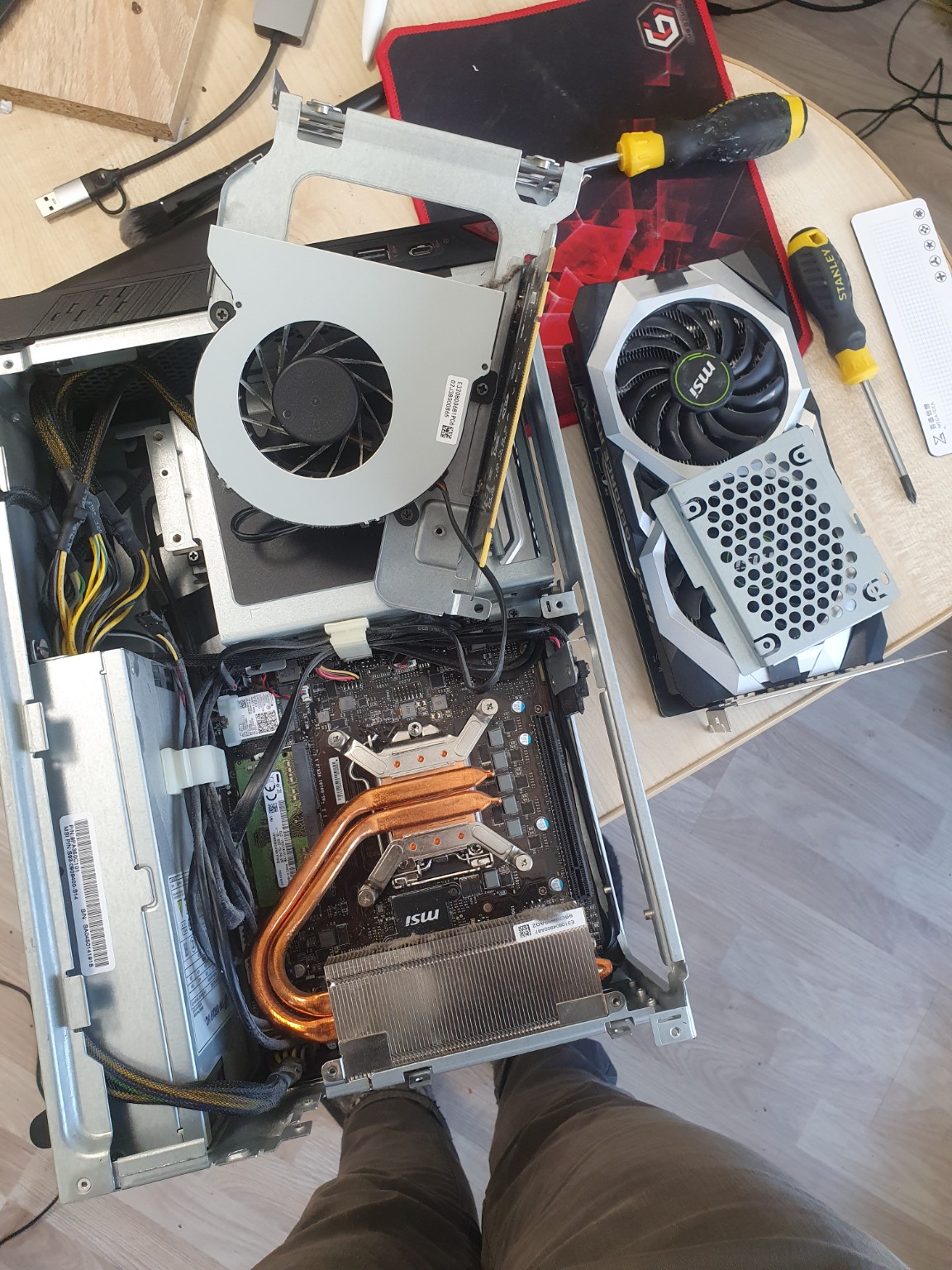
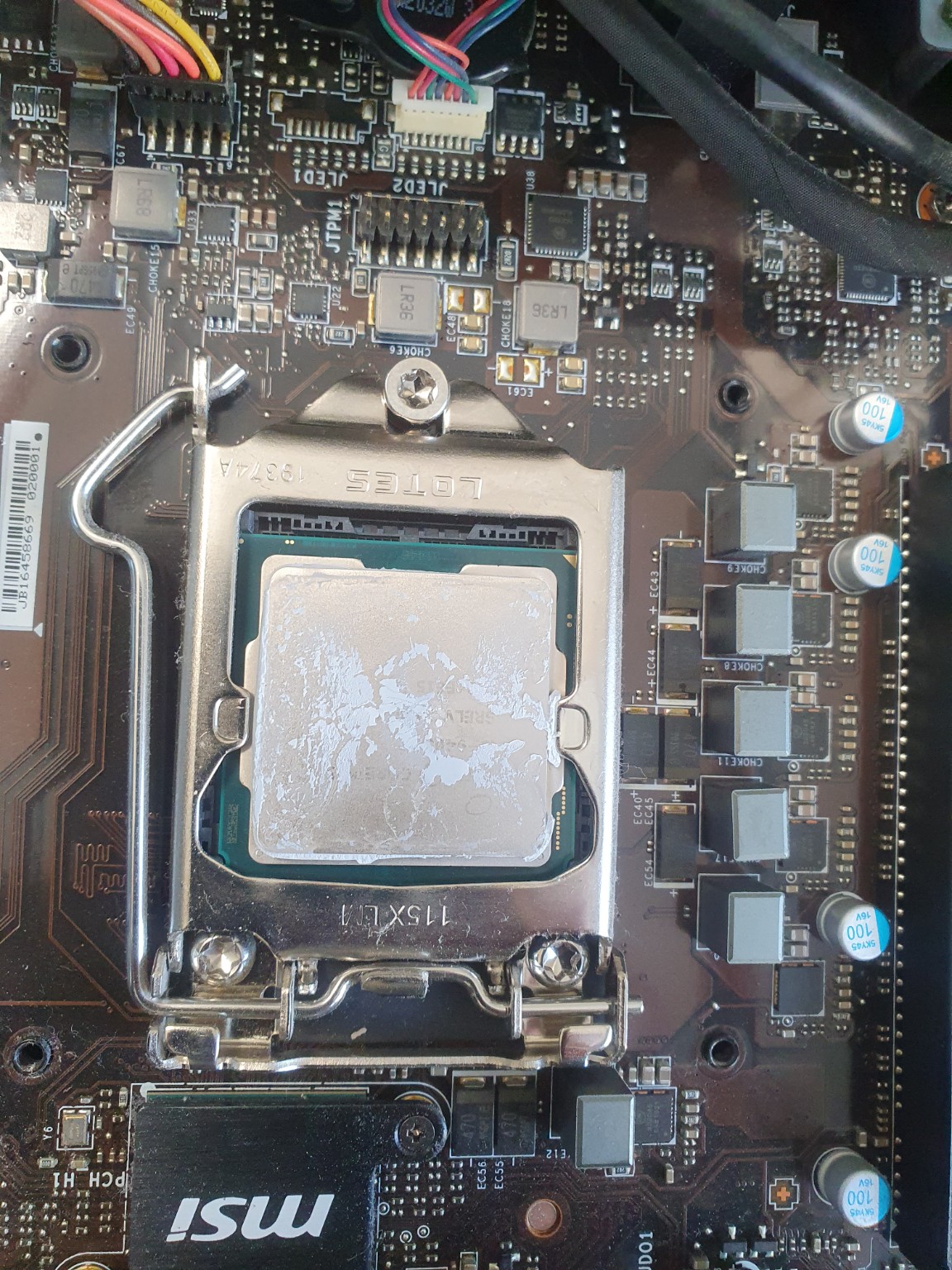
Desktop CPU and graphics card thermal paste replacement
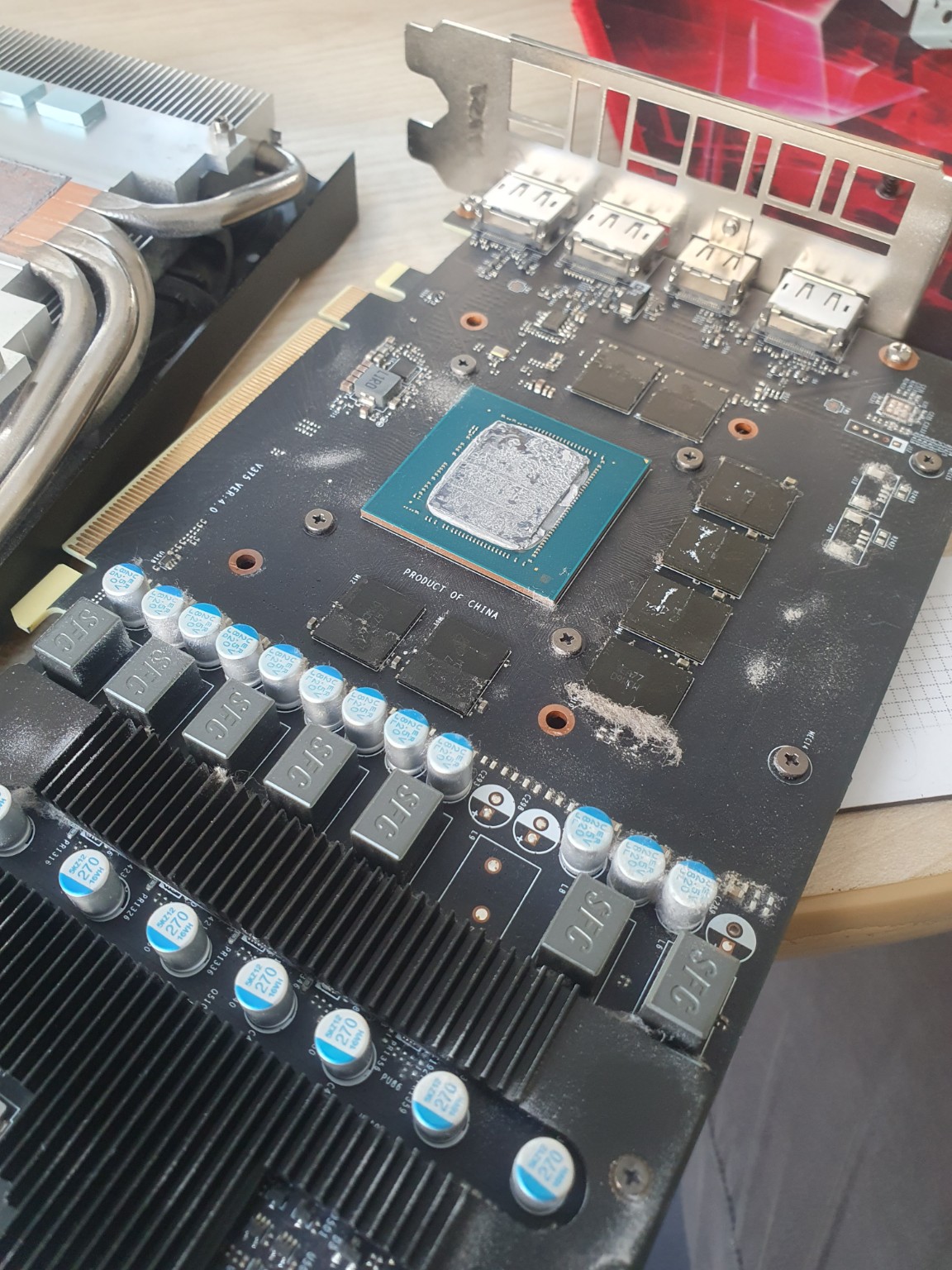
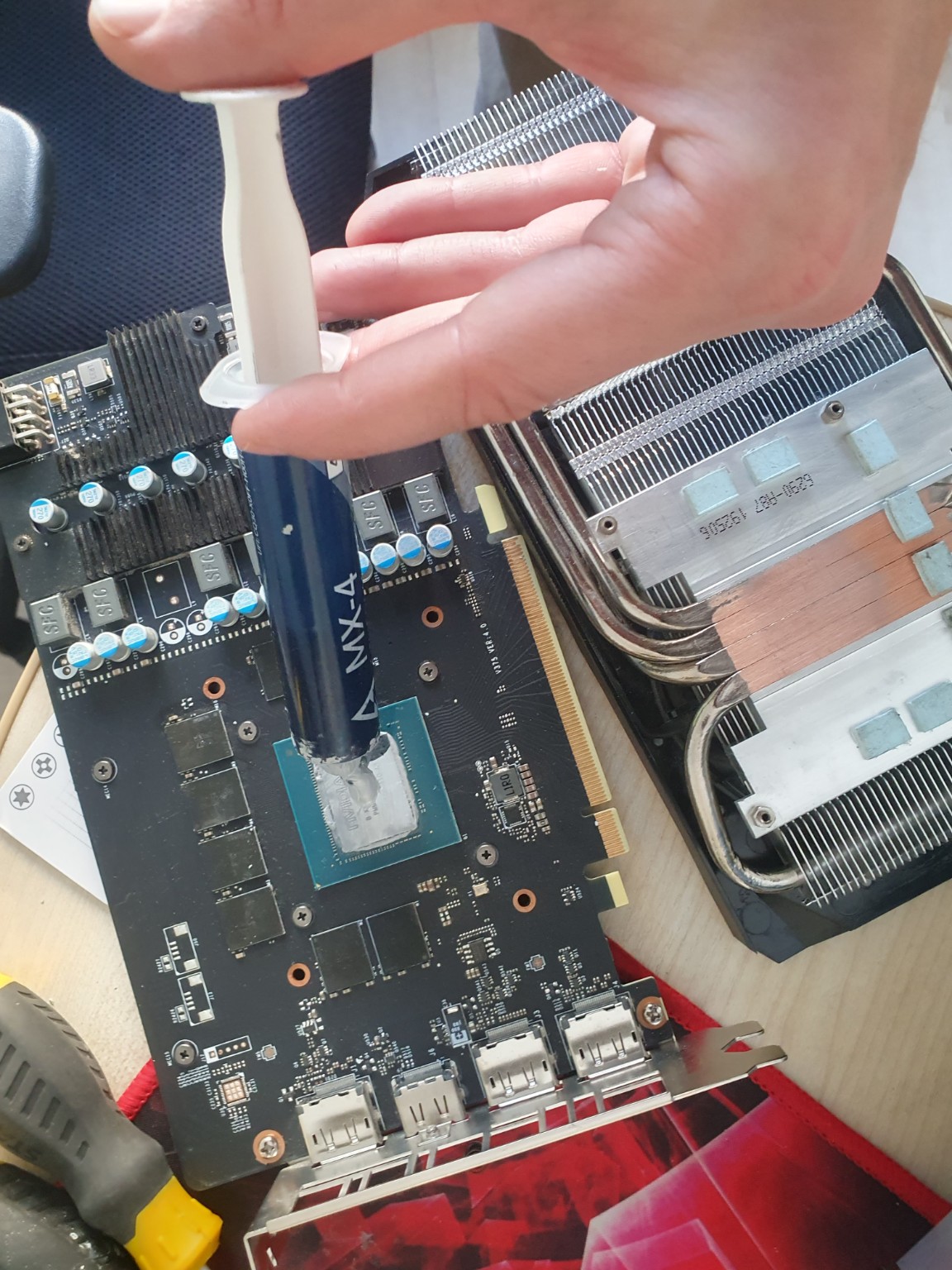
Processor and graphics card cooling assemblies were disassembled and their thermal paste renewed. The gallery shows the work stages.
Repair process and recommendations
The story
This maintenance required access to both CPU and GPU contact surfaces. Photographs show the open case, removed cooling assemblies, old material and fresh paste application. Graphics card disassembly is a separate careful operation: connectors and contact with other cooled components must be preserved.
How I approach this work
Exact disassembly and testing depend on the model and diagnosed fault.
I unplug the computer, open the case and assess access, mountings and fan connections for the CPU cooler and graphics card.
I remove the CPU cooler and take the graphics card out before separating its cooling assembly. I note thermal pad locations and preserve their contacts.
I carefully remove old paste from the CPU, GPU and cooler surfaces, clean dust and inspect the other thermal materials.
I apply suitable fresh paste to CPU and GPU. If other thermal elements need renewal, their type and thickness must preserve correct cooler contact.
I refit the coolers evenly, reconnect fans and reinstall the card. I check image output, fan operation and system behaviour under load.
Repair outcome
CPU and GPU thermal paste replaced. This services two separate thermal contacts, beyond removing dust from the case.
Data recovery
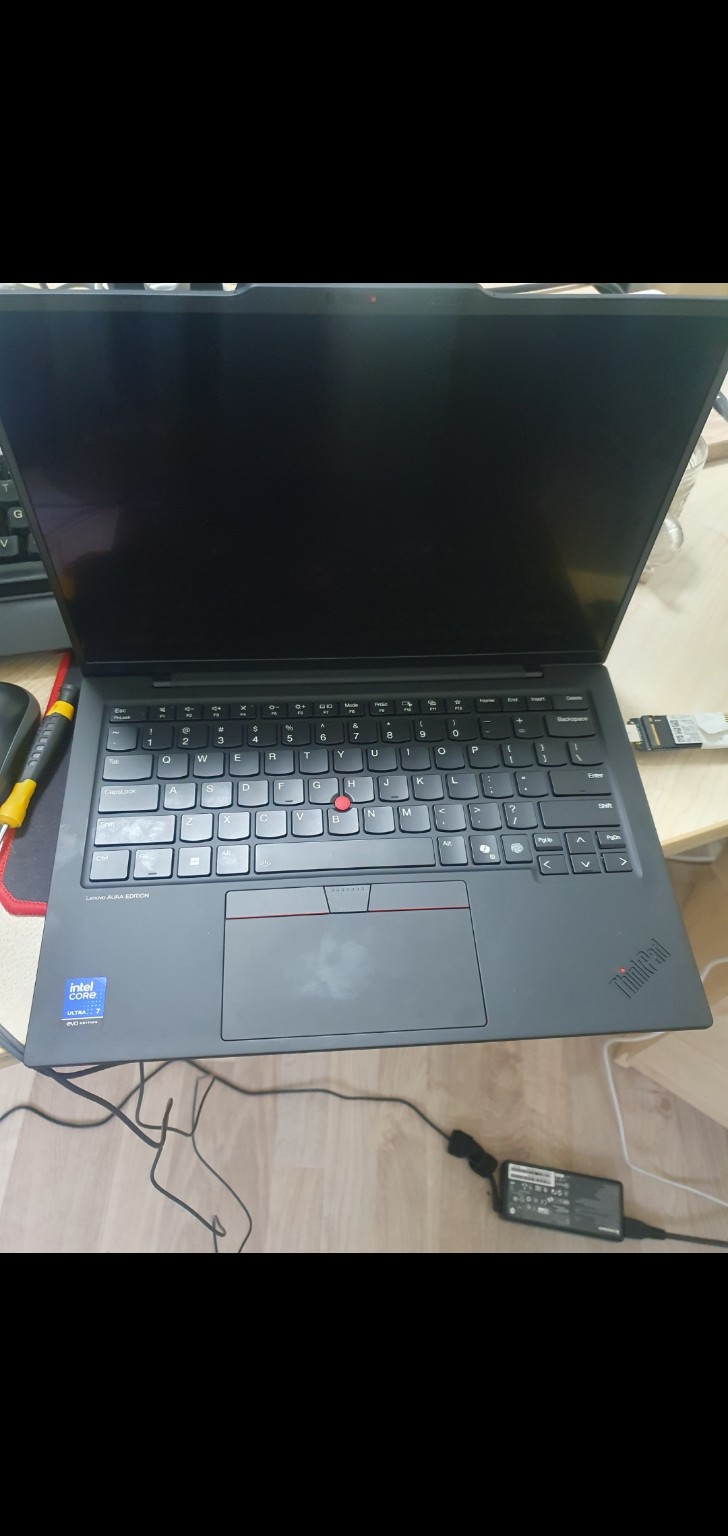
Lenovo ThinkPad: local account and data access restored
A local account password problem blocked access to the customer’s data. Restoring account access allowed the data to be retrieved.
Repair process and recommendations
The story
Data on this ThinkPad was inaccessible because of a local account sign-in problem. I restored local account access and retrieved the required data. This was an access recovery case rather than repair of a physically failed drive.
How I approach this work
Exact disassembly and testing depend on the model and diagnosed fault.
With the owner, I identify the account type, required data, sign-in issue and any disk encryption.
I choose an appropriate local account recovery approach, preserving files and avoiding unnecessary system reinstallation.
I restore local account access and check the user folders and required documents.
I discuss separate storage for the data and future sign-in. The customer should keep credentials and recovery information securely.
Repair outcome
Local account access restored and the required data accessed.
Electronics and BIOS
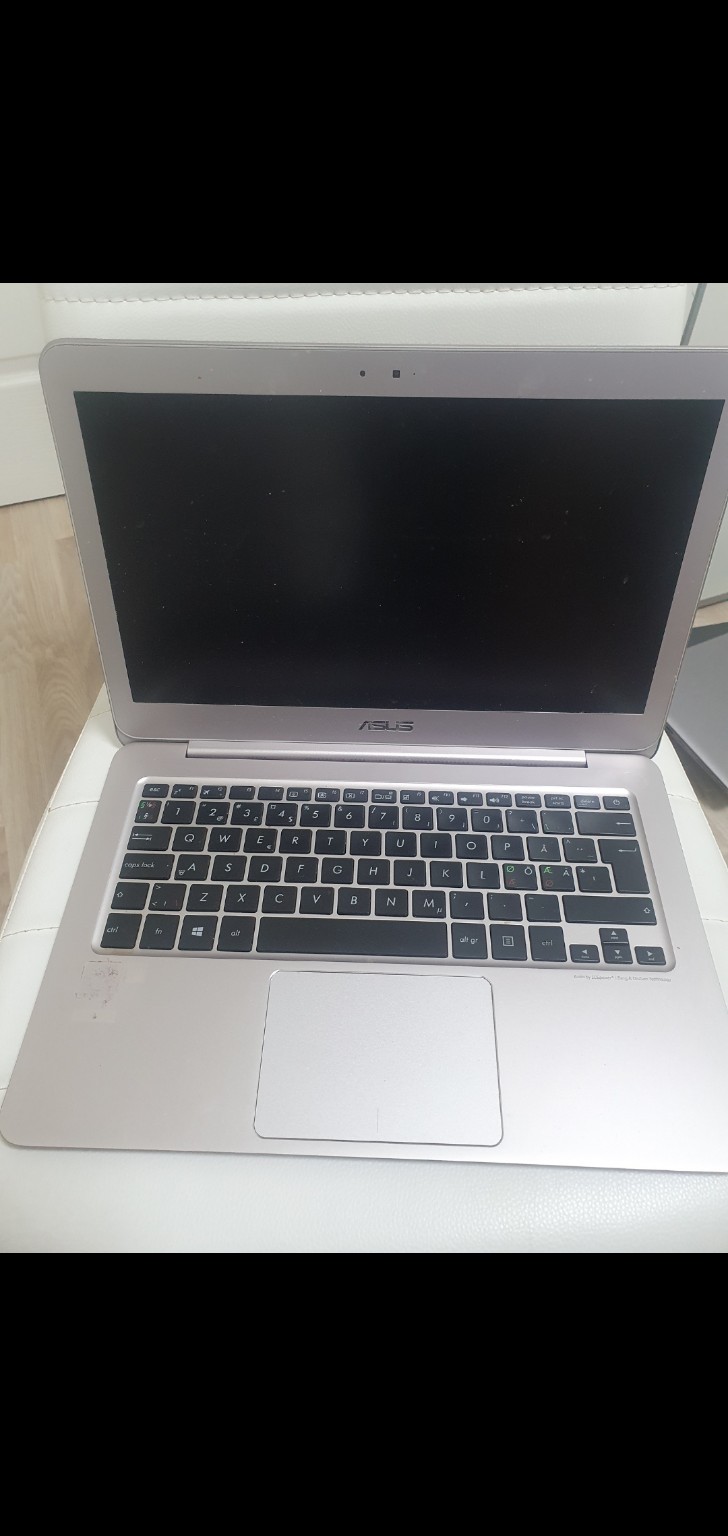
ASUS liquid damage: power circuit restored
Liquid exposure mainly affected this ASUS laptop’s power circuit. Replacing damaged components restored operation.
Repair process and recommendations
The story
After a spill, identifying the affected board area matters: drying the case alone does not resolve the fault. This ASUS had its main fault in the power circuit. I repaired it by replacing damaged components, restoring computer operation.
How I approach this work
Exact disassembly and testing depend on the model and diagnosed fault.
I disconnect power and the battery, dismantle the laptop and inspect liquid-affected board areas.
I inspect the power circuit, remove obstructing residue and take targeted measurements to identify damaged components.
I replace diagnosed components and check solder joints and circuit condition before applying power.
I check power delivery, reconnect assemblies and assess start-up and overall operation after assembly.
Repair outcome
Liquid-damaged power circuit repaired; the ASUS started working again.
Keyboards and cables
Internal ribbon cable replacement: small connectors, important functions
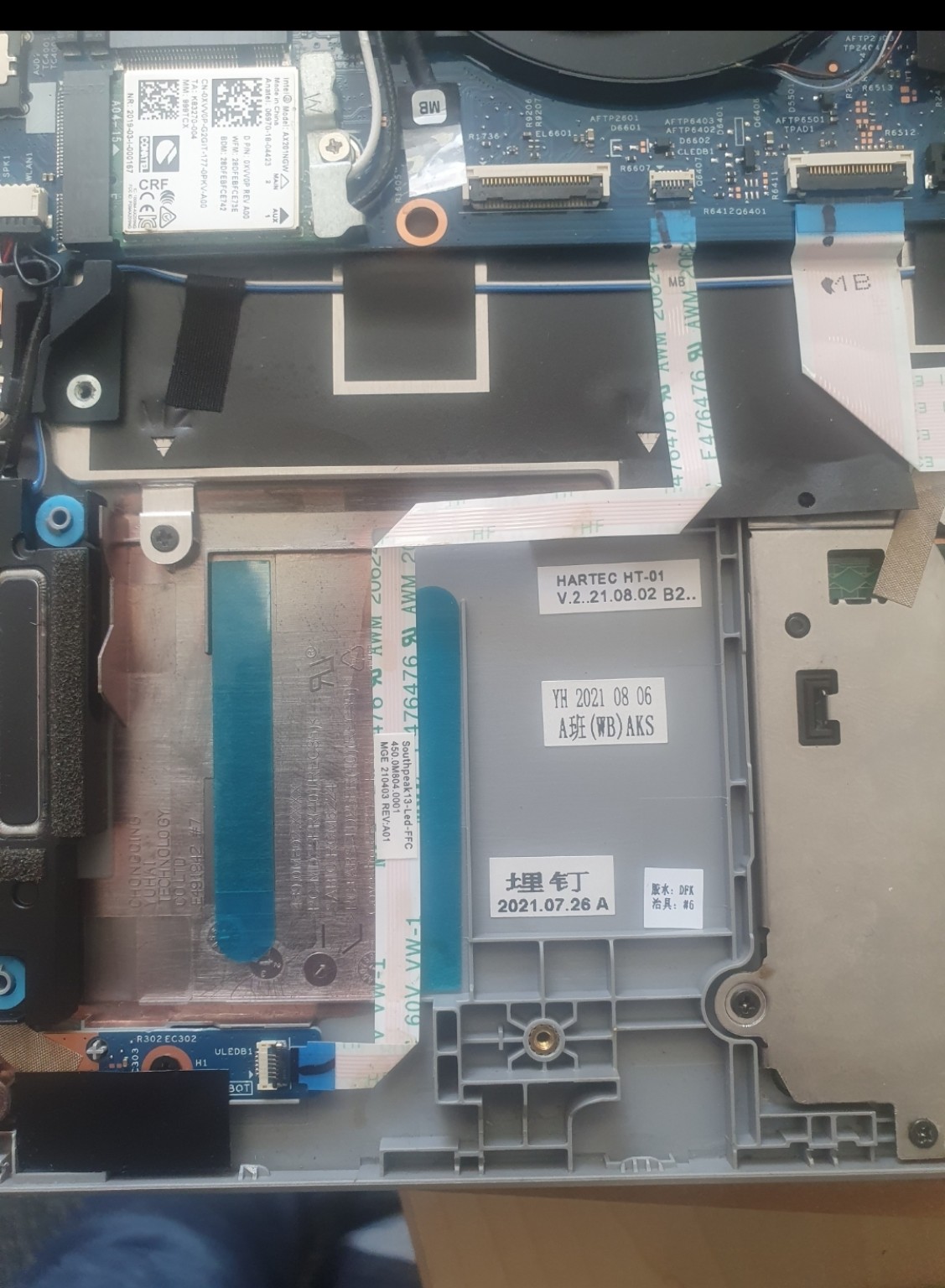
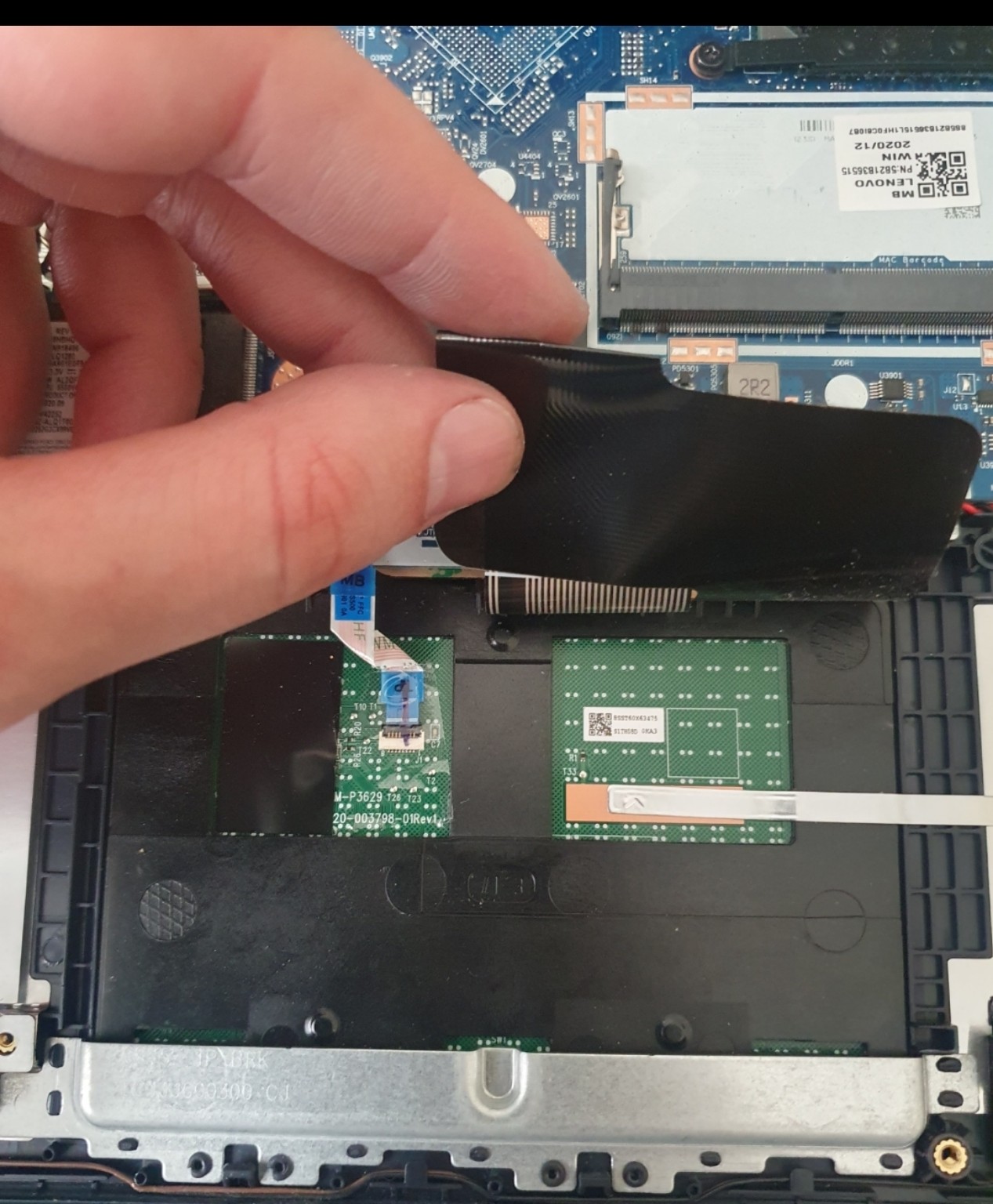
Internal ribbon cables were replaced in these laptop repair examples. The photographs show their routing and connection points.
Repair process and recommendations
The story
Flat flexible cables connect the motherboard to the keyboard, touchpad and other assemblies. Replacement requires opening the case, accessing the connectors and handling their locking tabs carefully. The gallery shows why changing a small component may require substantial disassembly.
How I approach this work
Exact disassembly and testing depend on the model and diagnosed fault.
I identify the ribbon using the failed function and model, checking contact count, connector type, orientation and routing.
I disconnect power and the battery and remove assemblies blocking access. I unlock the connector gently rather than pulling the ribbon by force.
I remove the old cable and inspect both sockets. A damaged socket may require more than cable replacement.
I fit a compatible ribbon, seat its contacts, close the locks and restore the routing away from screws and moving parts.
After assembly, I check the function served by that ribbon and ensure the case does not interfere with the connection.
Repair outcome
Ribbon cables replaced. Each cable’s role and replacement specification depend on the computer’s design.
Components and upgrades
Desktop computer: replacing a failed graphics card
A failed graphics card caused this desktop’s problem. Replacing it with another GPU resolved the fault.
Repair process and recommendations
The story
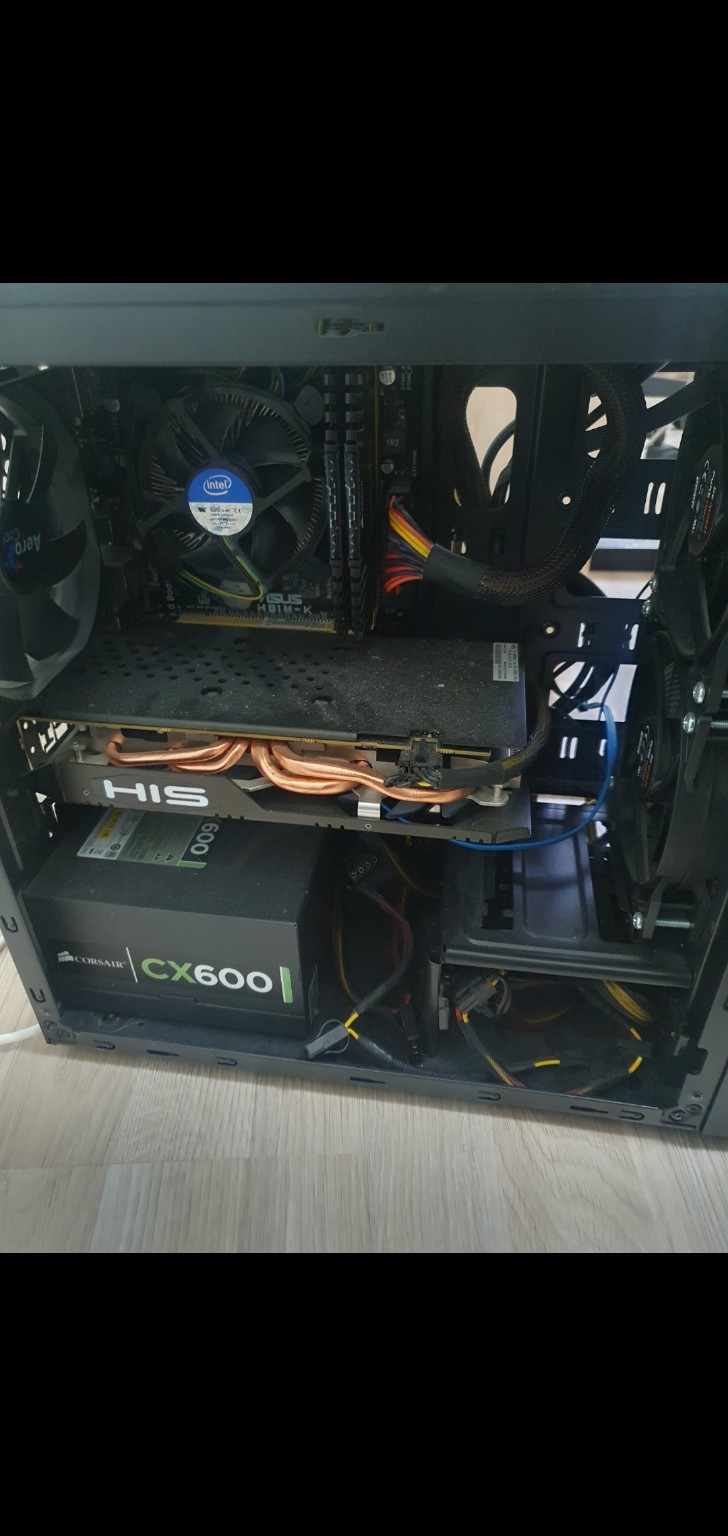
The solution here was replacement of the complete graphics card. After identifying the faulty component, I removed it and installed another card. This resolved the problem. The photograph shows the open case and card installation area.
How I approach this work
Exact disassembly and testing depend on the model and diagnosed fault.
I distinguish graphics card failure from monitor, cable and power problems.
I unplug the computer, open the case, disconnect GPU power, release mountings and the PCIe latch, and remove the failed card.
I install and secure a compatible replacement, connect its power cables and keep wires clear of fans.
I check video output and device detection, adjust drivers where needed and assess operation under load.
Repair outcome
Failed graphics card replaced with another card; the problem was resolved.
Data recovery
Laptop HDDs: 92% of required data recovered
These drives had a stuck head, a controller fault and software recovery cases. Overall, 92% of required data was recovered; one drive could not be recovered.
Repair process and recommendations
The story
Diagnosis of these laptop hard drives revealed several causes. One had a stuck read head, another a controller fault, while others were recovered through software. One drive could not yield its data. These cases illustrate both successful recovery and its limits: the outcome cannot be identical for every drive.
How I approach this work
Exact disassembly and testing depend on the model and diagnosed fault.
I identify each HDD and priority files, assessing detection, unusual sounds and previous attempts.
Diagnosis determines the approach: mechanical work for the stuck head, electronics diagnosis for the controller fault or software recovery.
When reading becomes possible, I copy data to separate storage or an image and plan file analysis around readable areas and priorities.
I check recovered files and distinguish accessible from unrecovered data. In this group one drive could not be recovered; the overall required-data result was 92%.
Repair outcome
Overall, 92% of required data was recovered from this group. One drive could not be recovered. The 92% refers to required data, not the proportion of repaired drives.
Electronics and BIOS
MacBook liquid damage: backlight and keyboard restored
After a spill, the display backlight and keyboard stopped working. I restored both functions through motherboard repair.
Repair process and recommendations
The story
Several failed functions can have a common cause. In this case, the work involved the motherboard electronics. Describing it simply as screen or keyboard replacement would not reflect the repair performed. The photograph shows the computer after the work.
How I approach this work
Exact disassembly and testing depend on the model and diagnosed fault.
I record the symptoms and history, disconnect power and open the case. I remove the motherboard when access to the affected area requires it.
I inspect the board, connectors and visible damage. After liquid exposure, I assess residue and corrosion and clean affected areas before further power-on testing.
I take targeted power and signal measurements guided by the symptoms, distinguishing board faults from cable or attached-module problems.
I repair the diagnosed area, which may involve a component, connector or trace. Exact actions and parts depend on diagnosis.
After assembly, I test the repaired function and related components. Liquid damage also requires assessment beyond the original symptom.
Repair outcome
Motherboard repaired; display backlight and keyboard operation restored.
Cooling
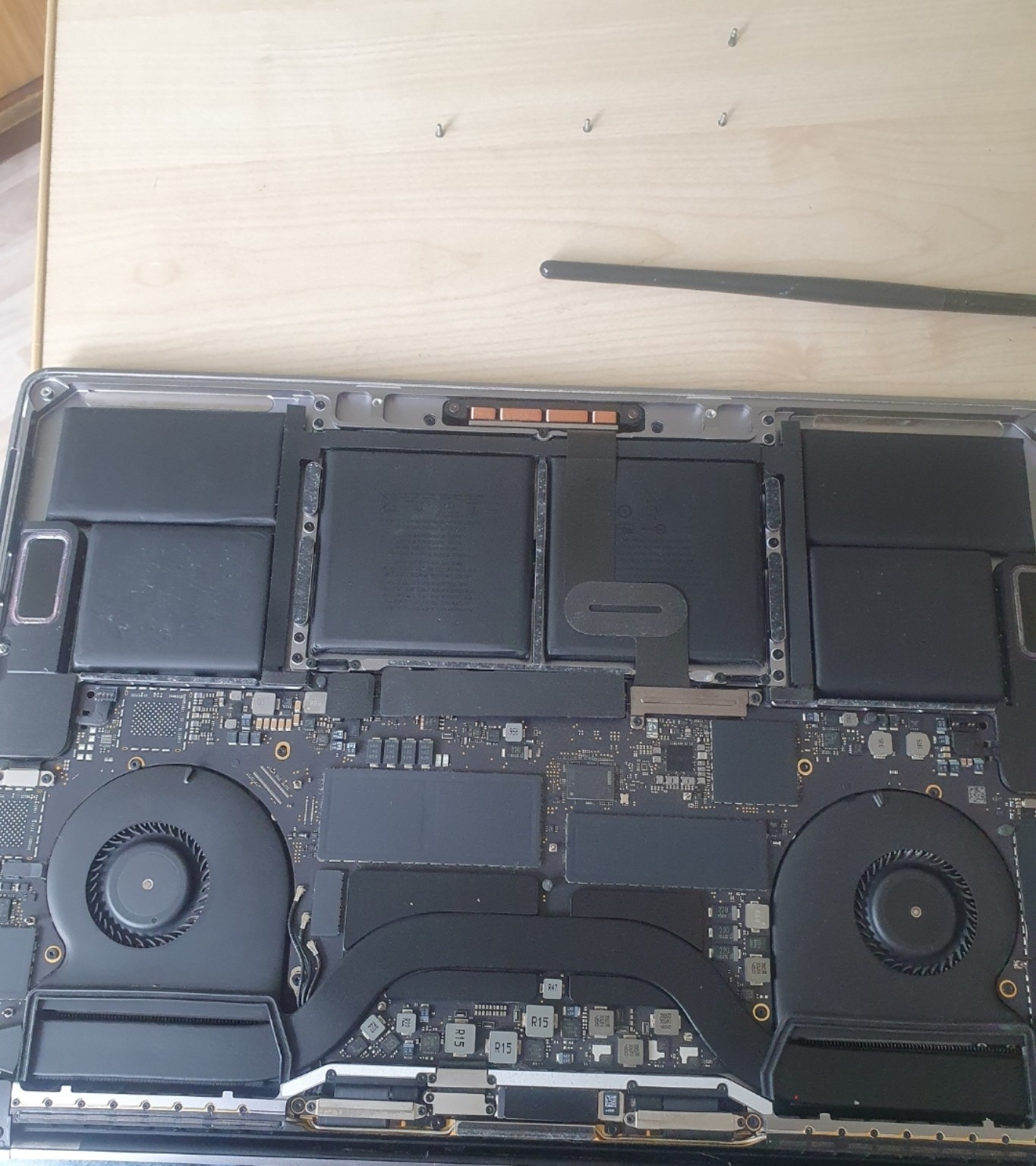
MacBook cooling cleaning and thermal paste replacement
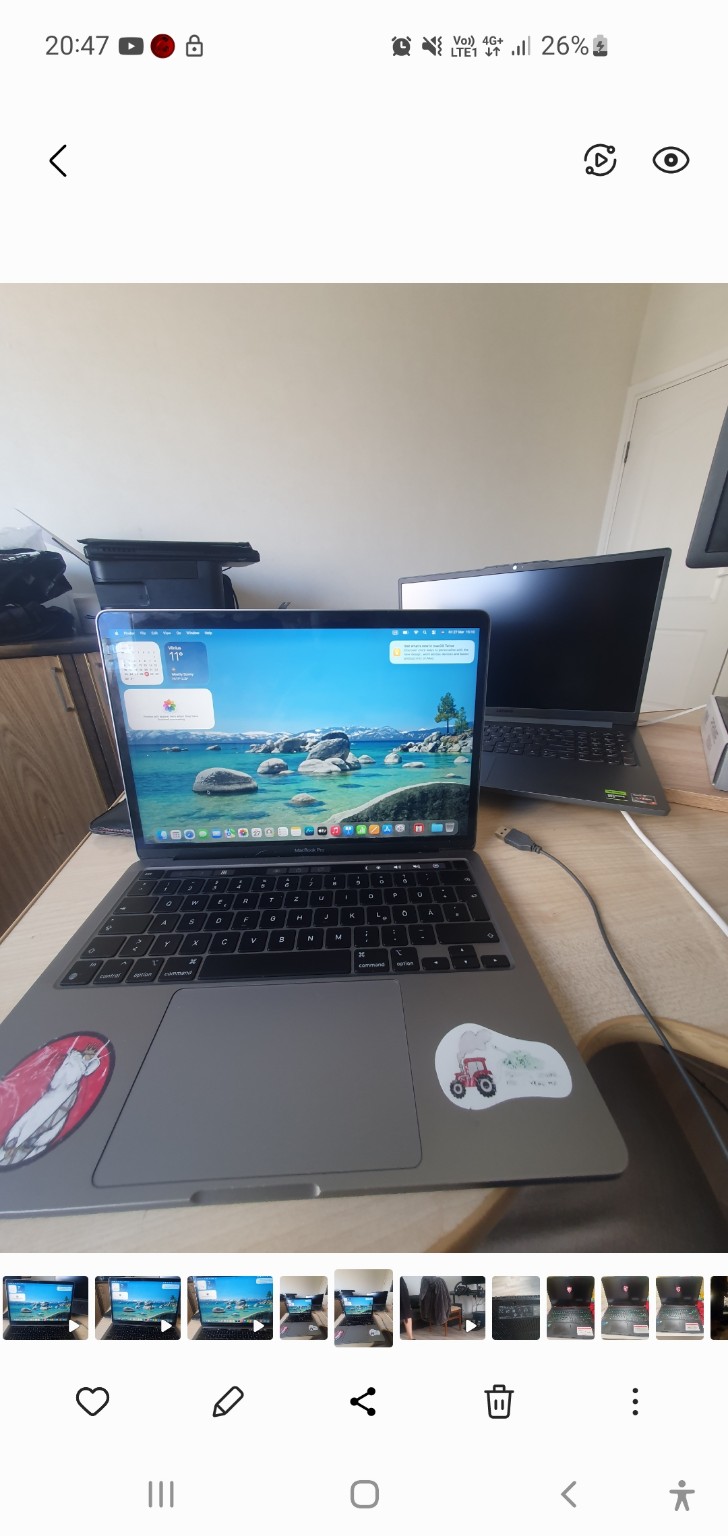
I renewed the thermal paste and cleaned this Apple computer’s cooling system. The photograph shows its interior after maintenance.
Repair process and recommendations
The story
Cooling care goes beyond removing visible dust from the cover. Fans, radiator channels and thermal contact surfaces all matter. The photograph shows assembled internal components after cleaning and paste replacement, before the bottom cover is fitted.
How I approach this work
Exact disassembly and testing depend on the model and diagnosed fault.
I assess the model, cooling design and symptoms. Where needed, I record temperatures and fan behaviour under comparable test conditions.
I disconnect power and the battery, open the case and remove fans or cooling hardware as required, noting mountings and thermal-material locations.
I clean fan blades and radiator channels and remove old paste from contact surfaces without scratching them or contaminating nearby electronics.
I renew thermal materials to suit the specific assembly. Paste, thin thermal sheets and thicker pads are not universally interchangeable.
I refit the cooler with even fastening pressure and reconnect the fans. I check operation under load and compare temperatures only when comparable measurements are available.
Repair outcome
Cooling system cleaned and thermal paste replaced. No before-and-after temperature figures are presented for this example.
Components and upgrades
SSD upgrades: faster everyday computing
The computers pictured needed SSD upgrades. Replacing an HDD with an SSD can improve start-up and application loading, especially in older systems.
Repair process and recommendations
The story
When an old mechanical drive is the main bottleneck, an SSD can be a worthwhile upgrade. These computers needed storage upgrades. Planning involves the correct interface and capacity, file preservation and system preparation, not just fitting a part. The actual speed improvement also depends on the other components.
How I approach this work
Exact disassembly and testing depend on the model and diagnosed fault.
I assess the model, current drive and bottlenecks, then choose a compatible SSD interface, form factor and capacity.
I agree on file preservation and either suitable system migration or a clean installation, arranging a copy of important files before replacement.
I disconnect power, access the drive and fit the SSD with appropriate mountings or adapter, disconnecting a laptop battery as its design requires.
I prepare the system as agreed and check drive detection, boot and file access, assessing performance alongside the other components.
Repair outcome
SSD storage was the upgrade needed for this group. Benefits are clearest when replacing a slow HDD; no measured speed figures were supplied.
Electronics and BIOS
MacBook motherboard power circuit repair
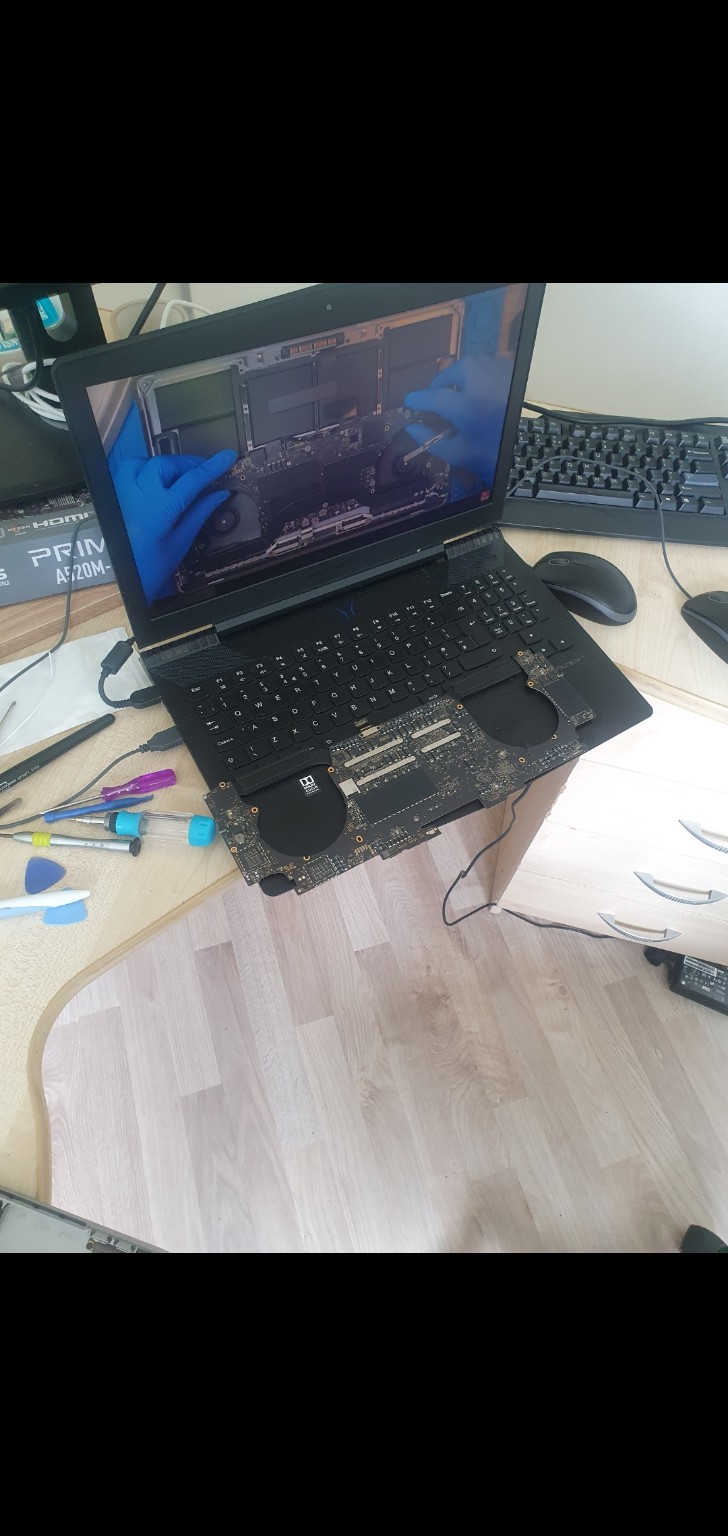
I repaired the power circuit on this Apple MacBook motherboard. The photograph shows the removed board during the work.
Repair process and recommendations
The story
Access to the motherboard power circuit required disassembling the computer and disconnecting internal connections. Removing the board provided access to the electronic components for repair. This work focused on the power circuit, which supplies voltage to the computer’s components.
How I approach this work
Exact disassembly and testing depend on the model and diagnosed fault.
I disconnect power and the battery, open the case and disconnect the motherboard. I remove the board as needed to access the power circuit.
I inspect power circuit components and connectors and identify relevant measurement points.
I take targeted voltage and resistance measurements to locate interrupted power delivery or another fault in the circuit.
I repair the affected power circuit area according to diagnosis. Component replacement or connection repair depends on the identified cause.
I check circuit operation, reconnect the board and assemble the computer, then assess start-up, power delivery and stability.
Repair outcome
Apple MacBook motherboard power circuit repaired.
Keyboards and cables
Laptop keyboard replacement
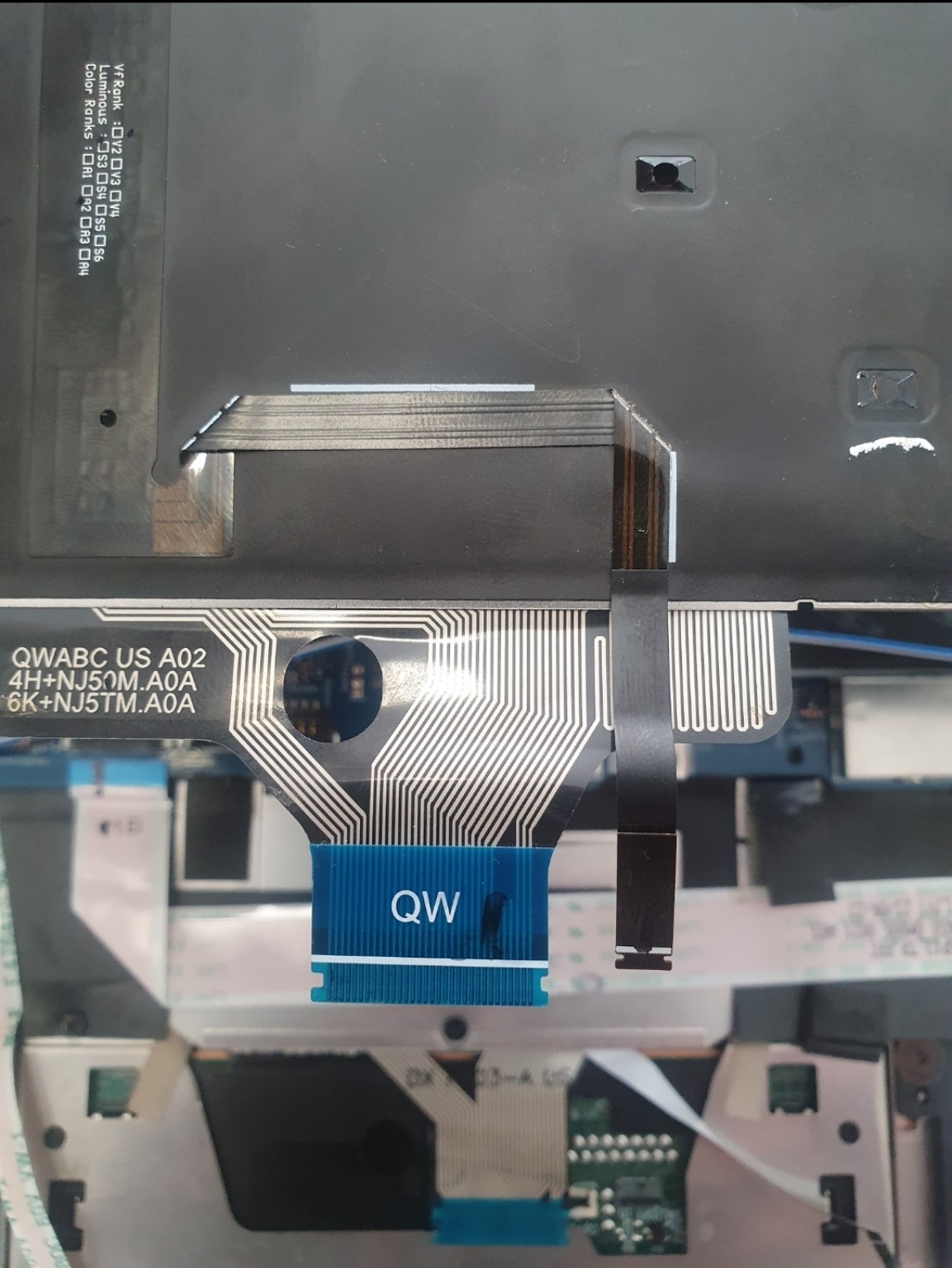
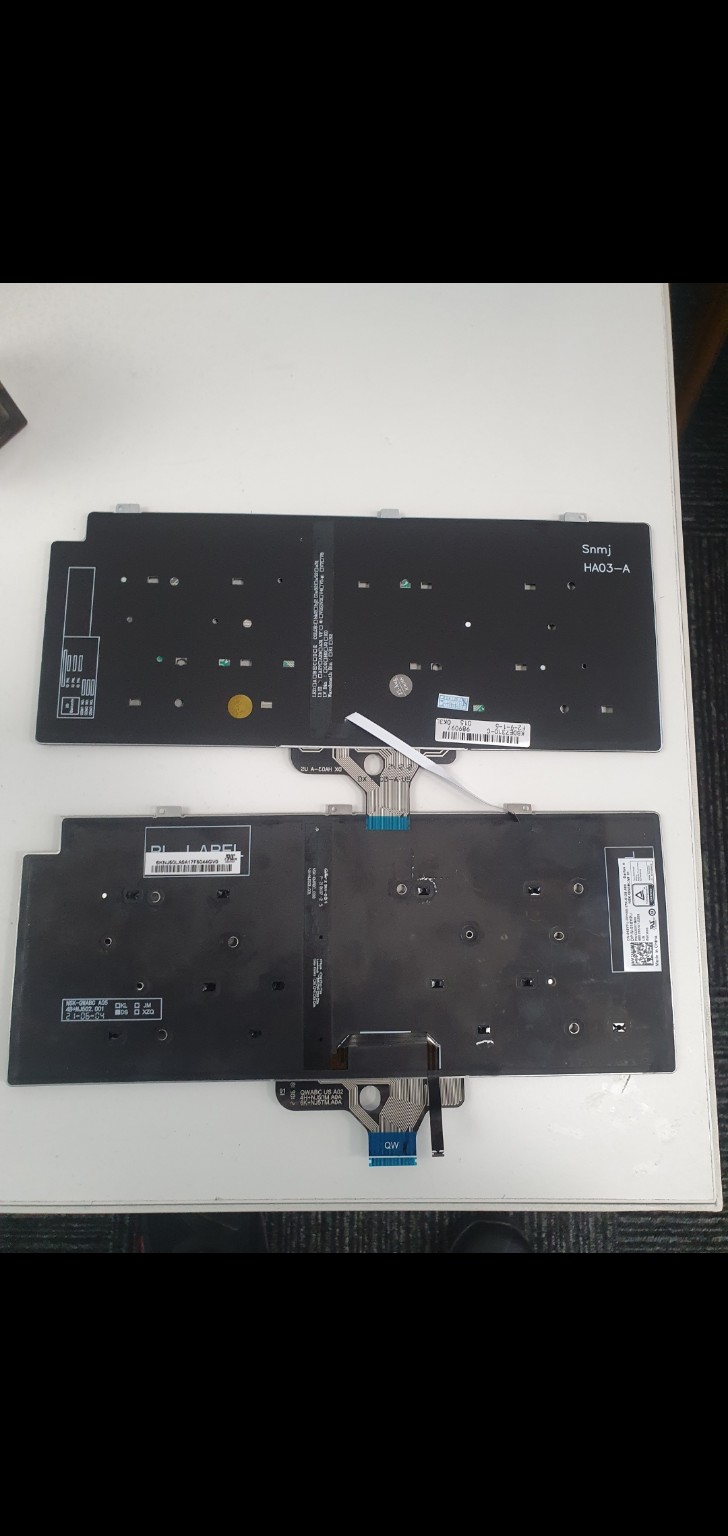
The photographs show the front and rear of replacement keyboards: keys, mounting points and connection ribbons.
Repair process and recommendations
The story
A keyboard must match the computer model, layout, connectors and backlight support. Shape alone is not sufficient: mountings and cables may differ. This example shows the parts used for keyboard replacement and their construction on both sides.
How I approach this work
Exact disassembly and testing depend on the model and diagnosed fault.
I confirm the model, key layout and backlight specification, assessing whether symptoms arise from the keyboard, cable or motherboard side.
I disconnect power and the battery and dismantle the necessary access. Some designs require motherboard or top-case removal.
I disconnect keyboard and backlight ribbons, release fastenings and remove the old part. An integrated keyboard may require a different replacement scope.
I secure the compatible keyboard, reconnect its ribbons and reassemble components without damaging mounts or trapping cables.
I check key entry, function keys and any supported backlighting before finishing case assembly.
Repair outcome
Keyboard replaced. Compatibility is assessed using the exact part, rather than similar appearance alone.
Data recovery
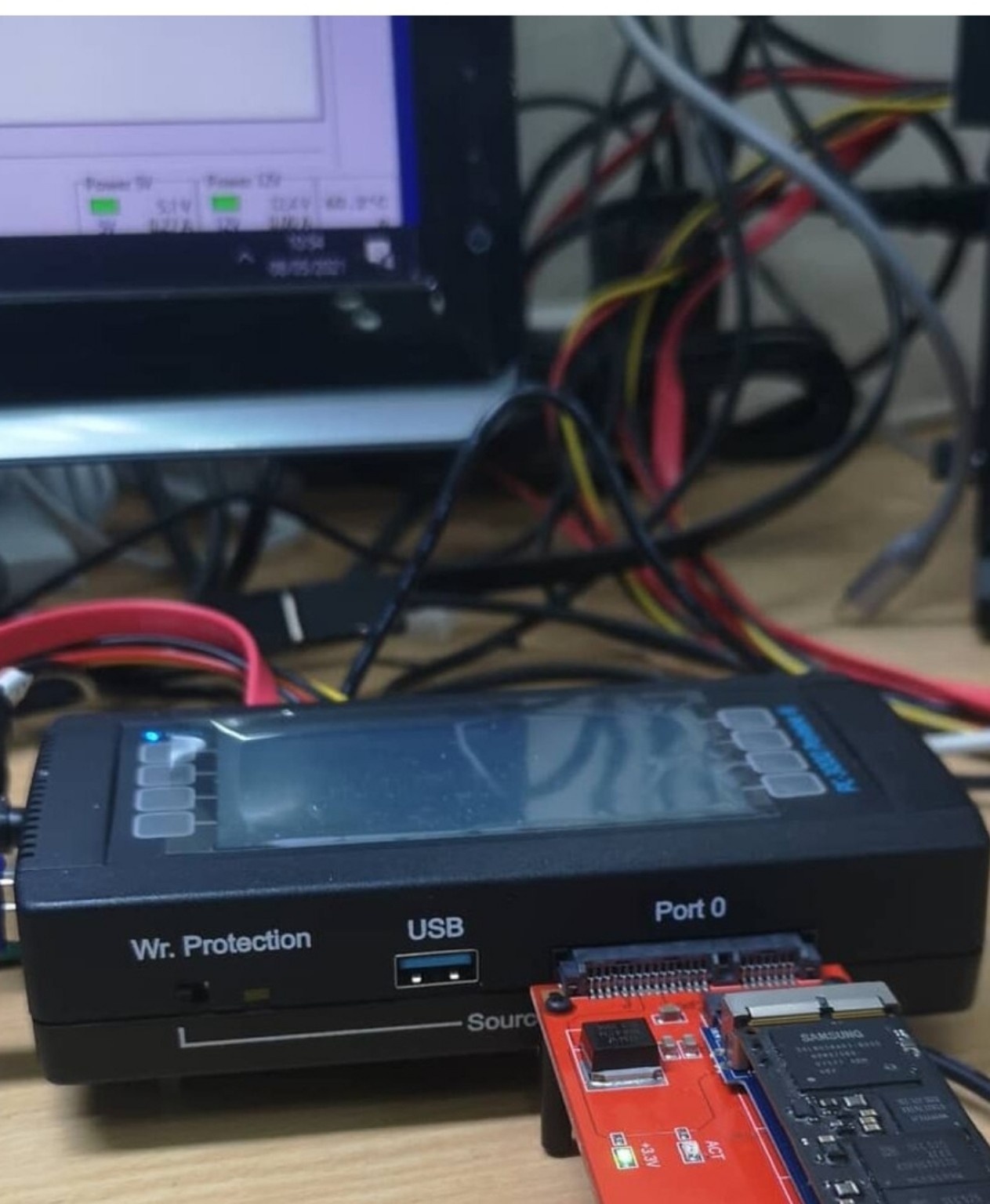
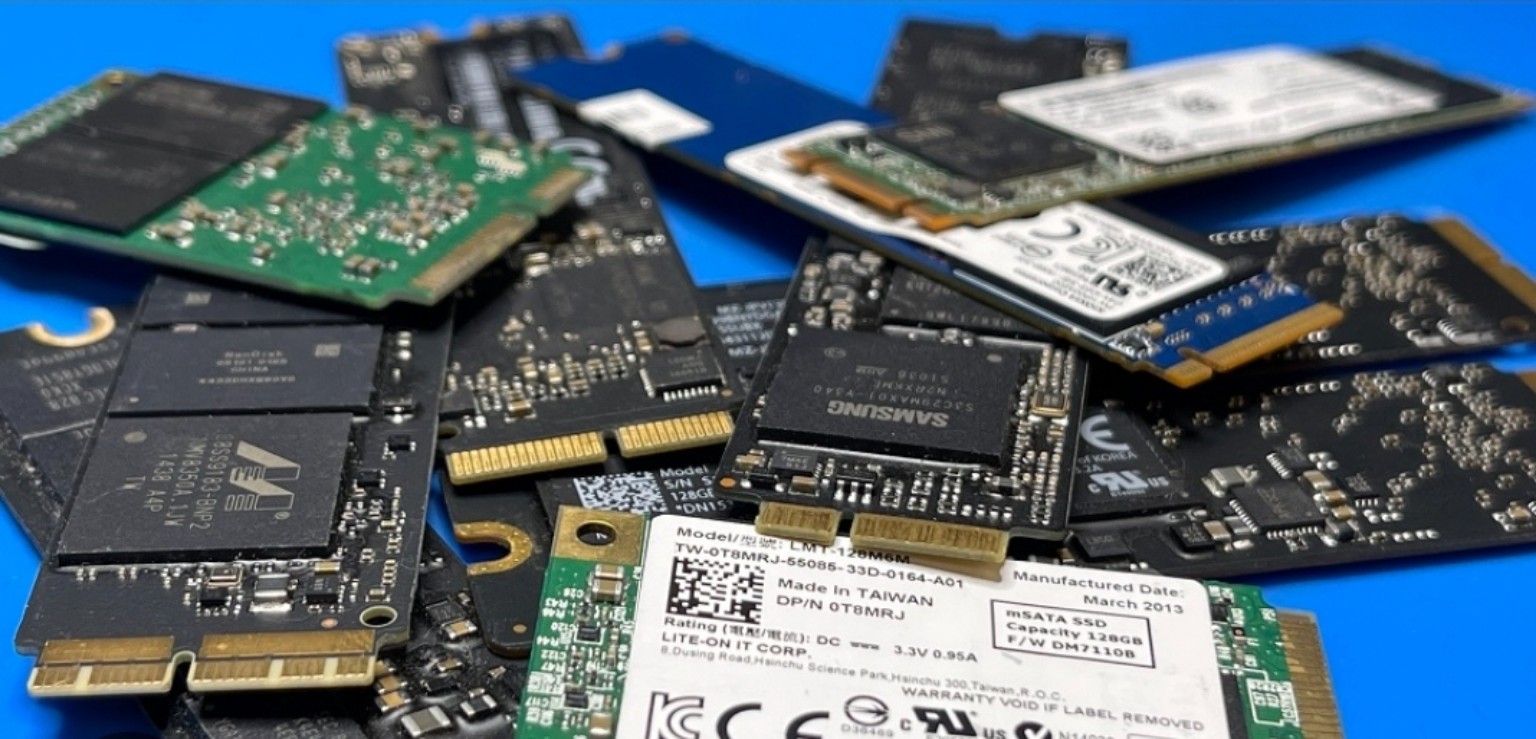
Data recovery from HDDs, SATA, NVMe and Apple SSDs
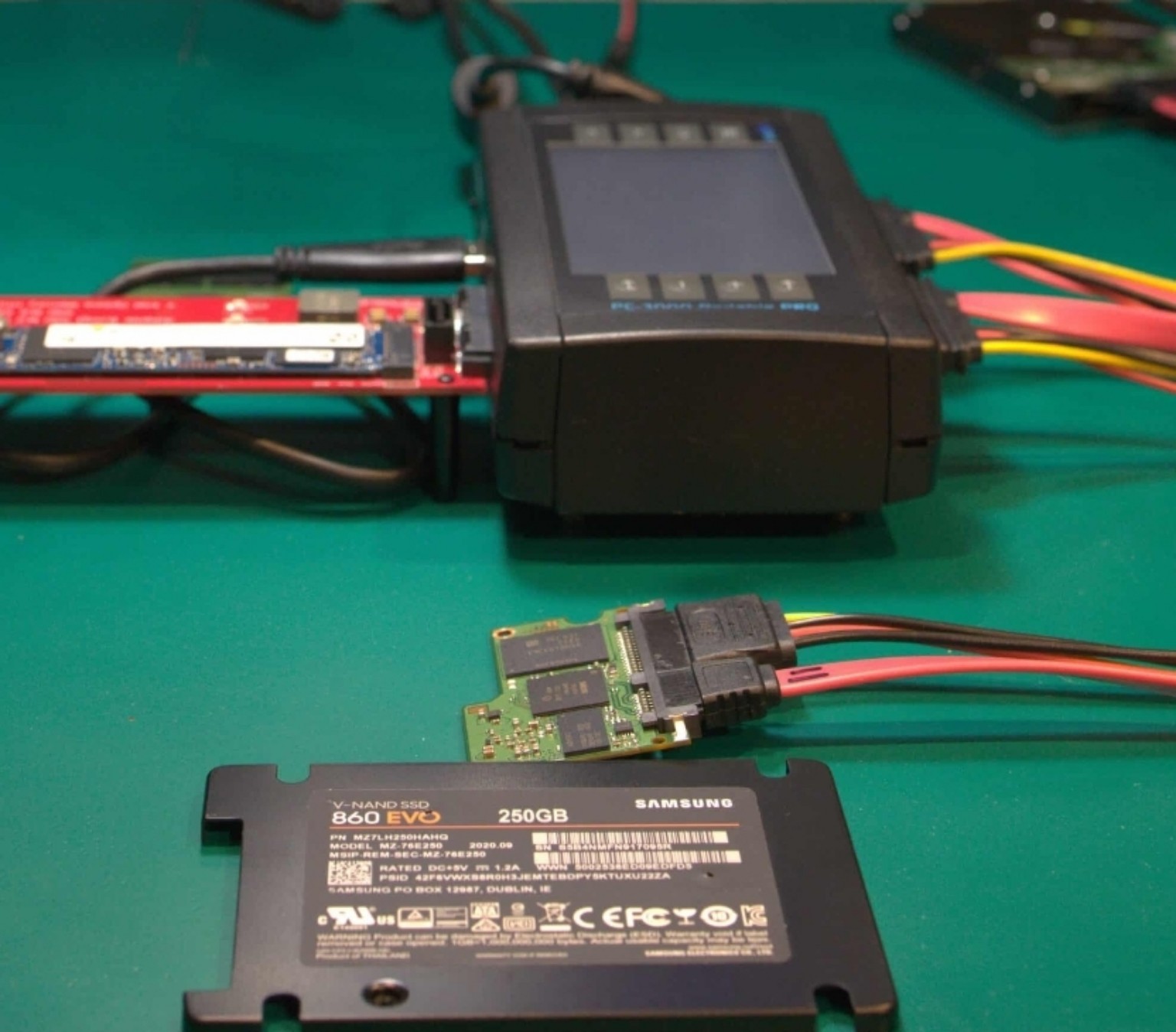
The photographs show specific hard drive and SSD recovery cases: diagnosis, connection to specialist equipment and data reading.
Repair process and recommendations
The story
In these jobs I first assessed drive condition and investigated why data had become inaccessible. HDD, SATA, NVMe and Apple SSD cases require different connections and approaches. M.2 describes a form factor, so I select equipment using the exact model and interface. Diagnostic findings guide reading, imaging and subsequent file recovery.
How I approach this work
Exact disassembly and testing depend on the model and diagnosed fault.
I establish what data is missing, when access was lost and which attempts have already been made, recording the exact drive model and recovery priorities.
I assess detection, condition and symptoms, distinguishing logical problems from electronic or mechanical faults without formatting the original.
I choose suitable connections and equipment and plan reading. Physical faults require safe access to be addressed first; recovery software alone is insufficient.
Where the condition permits, I make an image or copy to another drive and perform analysis and recovery from the copy wherever possible.
I assess recovered file condition and scope, agree the result and deliver data to separate storage. Recovering files does not make a damaged source reliable again.
Repair outcome
I choose the recovery process according to the diagnosed fault and drive condition, from diagnosis and reading through file verification and delivery to separate storage. The recoverable scope is discussed individually.
Electronics and BIOS
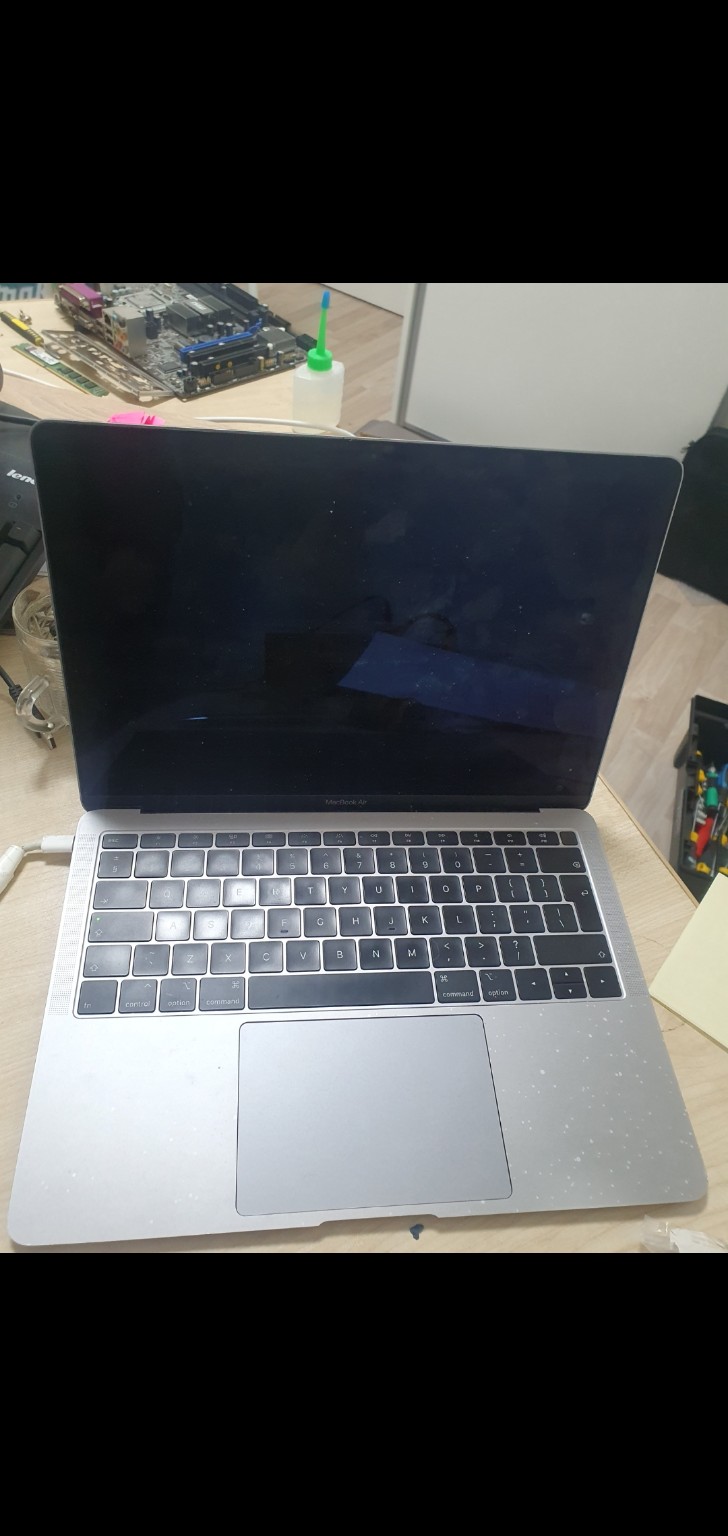
Liquid-damaged MacBook Air: board cleaning and VRM chip replacement
I restored this MacBook Air by cleaning the motherboard and replacing damaged VRM chips after a spill.
Repair process and recommendations
The story
Liquid had affected the MacBook Air motherboard. The work involved board cleaning and replacement of chips in the VRM, the voltage regulation circuitry. This circuitry provides the voltages required by components. Cleaning and replacing the damaged chips resolved the issue.
How I approach this work
Exact disassembly and testing depend on the model and diagnosed fault.
I disconnect the charger and battery, open the case and inspect liquid-affected board areas.
I clean the board, assess the VRM area and take measurements to identify components requiring replacement.
I remove damaged VRM chips, prepare the pads and solder compatible replacements, checking joints and unwanted shorts.
I assess circuit operation, reassemble the MacBook Air and check start-up and operation, including nearby liquid-affected areas.
Repair outcome
Motherboard cleaned and VRM chips replaced; MacBook Air operation restored.
A similar fault? Let us discuss your device
Send the computer model, symptoms and a clear photograph. I will suggest where to begin.
Puiki patirtis. Taisymui priėmė tą pačią dieną, pasiūlė pakaitinį kompiuterį, greitai diagnozavo problemą, užsakė dalis ir pataisė. Bendravo profesionaliai ir aiškiai, į visus klausimus greit atrašydavo. Rekomenduoju.
Paskelbta Google platformoje
aiste v
Puikiai atliktas darbas! Meistras labai greitai ir kokybiškai įrašė visas reikalingas programas į kompiuterį. Viskas veikia be jokių priekaištų, sistema nesulėtėjo, programos sukonfigūruotos teisingai. Labai malonus bendravimas ir profesionalus požiūris. Rekomenduoju :)
With your consent, Google Analytics helps measure traffic and Google Ads helps assess advertising performance. You can submit an enquiry without accepting these cookies.
Options and more information
Essential cookies keep the website working and remember your choice. Statistics and advertising cookies are used only with consent. Without consent, Google tags may send limited cookieless signals. Your name, phone number, email and message are not sent to conversion tags. Ad personalisation is disabled.
Your choice is stored for 180 days and can be changed using Cookie settings. Google may process information outside the EEA. How Google uses information. For website measurement enquiries, contact Meistras Karolis, Musninkų g. 6, Vilnius, tel. +370 600 52192.